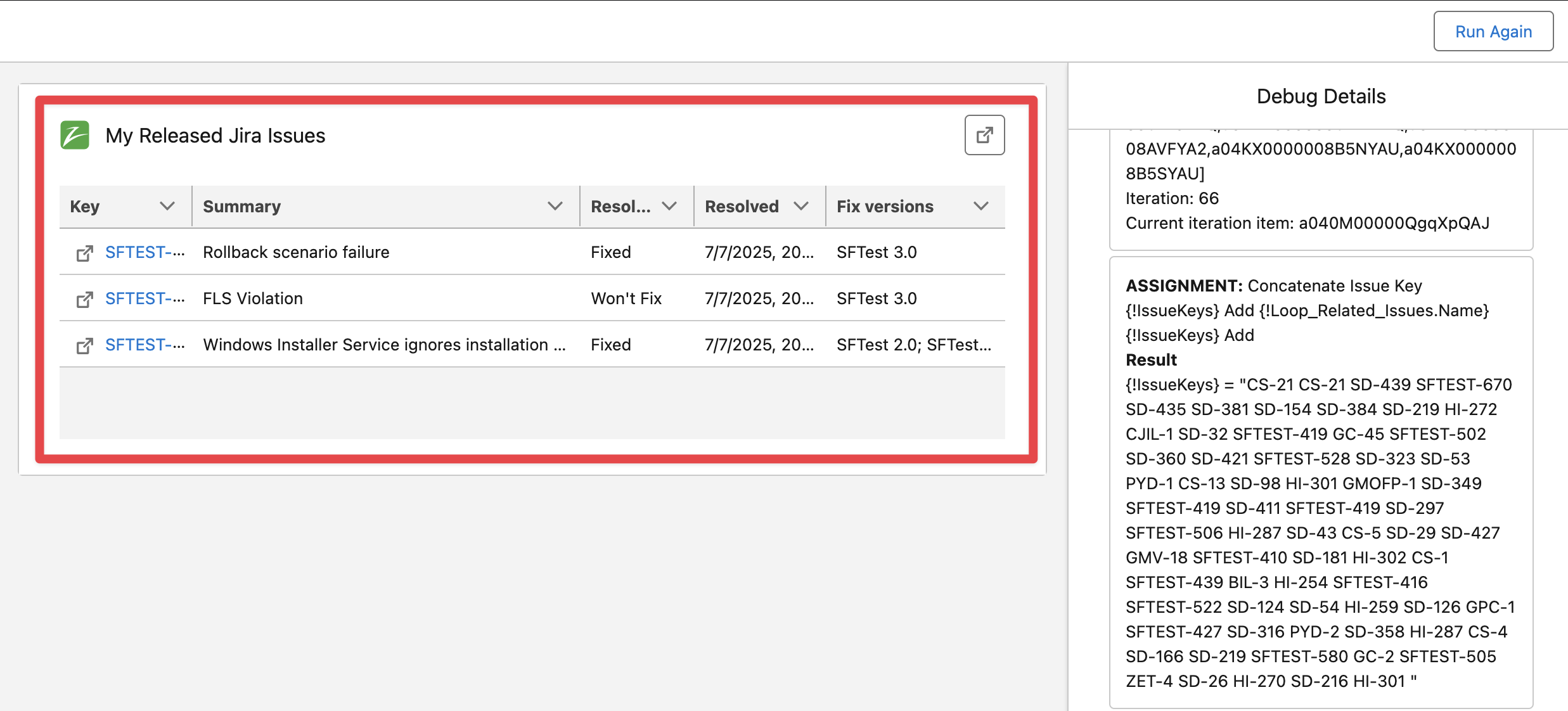
The Search Jira Issues Flow Screen Component, lets user search for Issues in Jira and link them to the specified Salesforce record Id. It can also be used to display a list of Jira Issues from a pre-defined JQL query.
|
Field |
Type |
Required |
Description |
|---|---|---|---|
|
API Name |
String |
|
The API name of the component. It can include underscores and alphanumeric characters without spaces. |
|
Results Height |
Number |
|
Height of the component in pixels. |
|
Initial rows |
Number |
|
Number of initial visible rows. |
|
Title |
String |
|
Title for the component. |
|
Record Id |
Id |
|
The record Id that Issues listed in the search result can be linked to. |
|
Column 1 |
String |
|
Jira Issue field id to show in the first column in search results. |
|
Column 2 |
String |
|
Jira Issue field id to show in the second column in search results. |
|
Column 3 |
String |
|
Jira Issue field id to show in the third column in search results. |
|
Column 4 |
String |
|
Jira Issue field id to show in the 4th column in search results. |
|
Column 5 |
String |
|
Jira Issue field id to show in the 5th column in search results. |
|
Restrict by JQL |
String |
|
JQL used to restrict the search in Jira. It can also be used a the pre-defined JQL query for auto search. |
|
Enable Search by JQL |
Boolean |
|
Flag to enable or disable the advanced search using Jira Query Language (JQL). |
|
Disable Search Input |
Boolean |
|
Hides the search input box. |
|
Auto search |
Boolean |
|
Perform a search in Jira automatically when rendering the component. |
|
Jira Connection |
String |
|
The Alias identifier for the Jira connection (when Salesforce is connected to multiple Jira instances). Leave blank to use the default connection. |
Example Screen Flow to list Issues Released in Jira
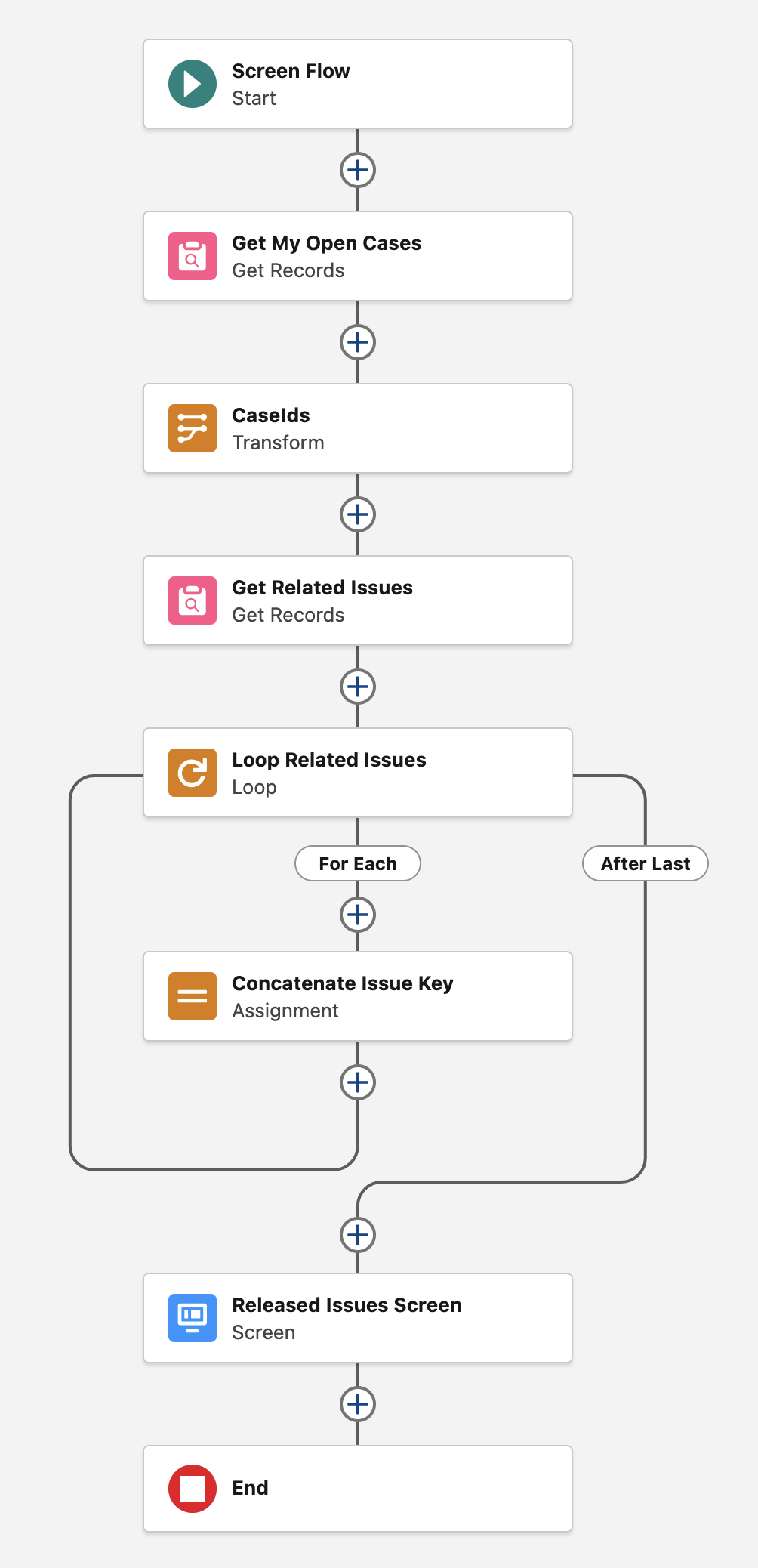
The following example flow uses the “Search Jira Issues“ screen component to show all the Jira Issues that have been released in Jira (meaning its fix Version has been released in the corresponding Jira Project) for all the Open Cases of the current Salesforce User. This is useful for example for Salesforce agents to send notification to customers that a new software version has been released and addresses some Bugs reported by the customer.
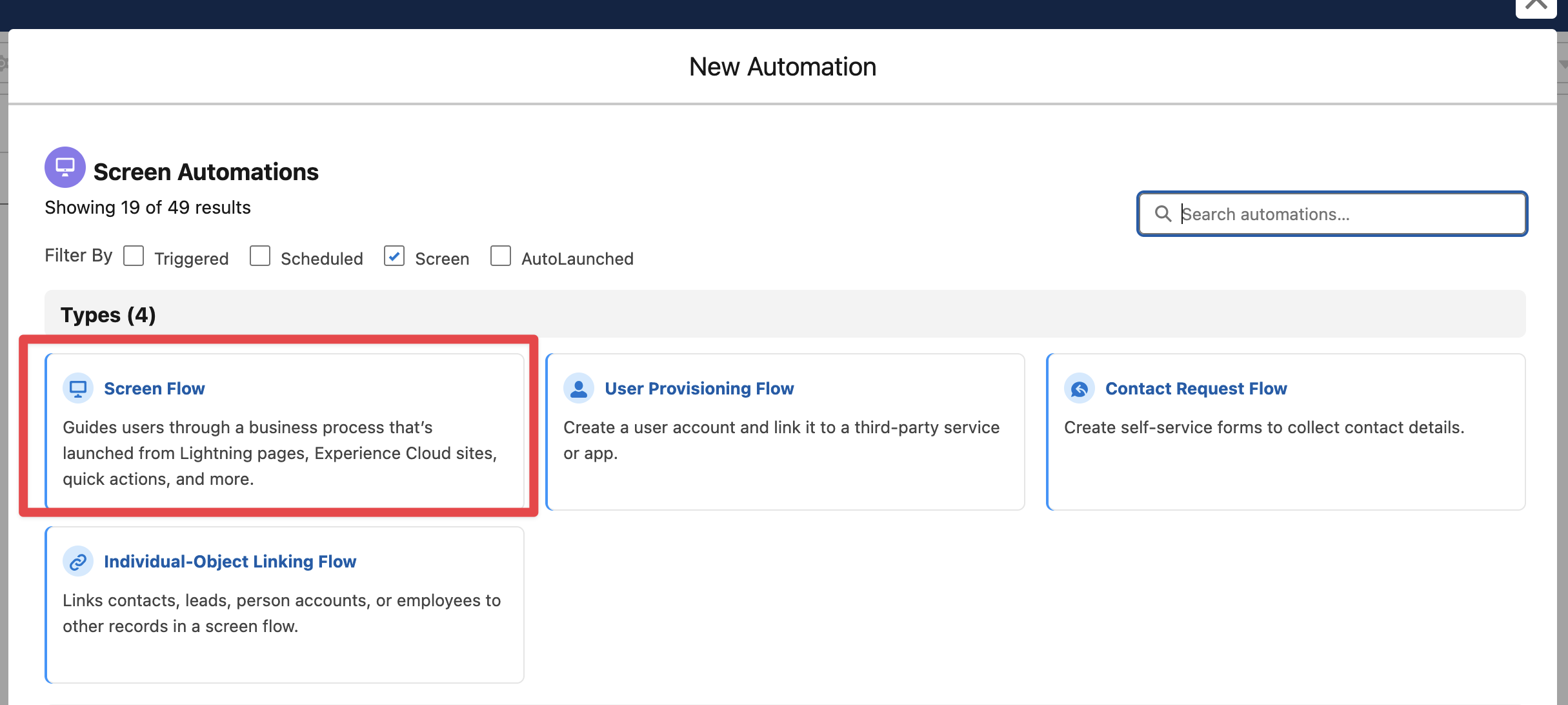
In Salesforce → Flows create a new Screen Flow
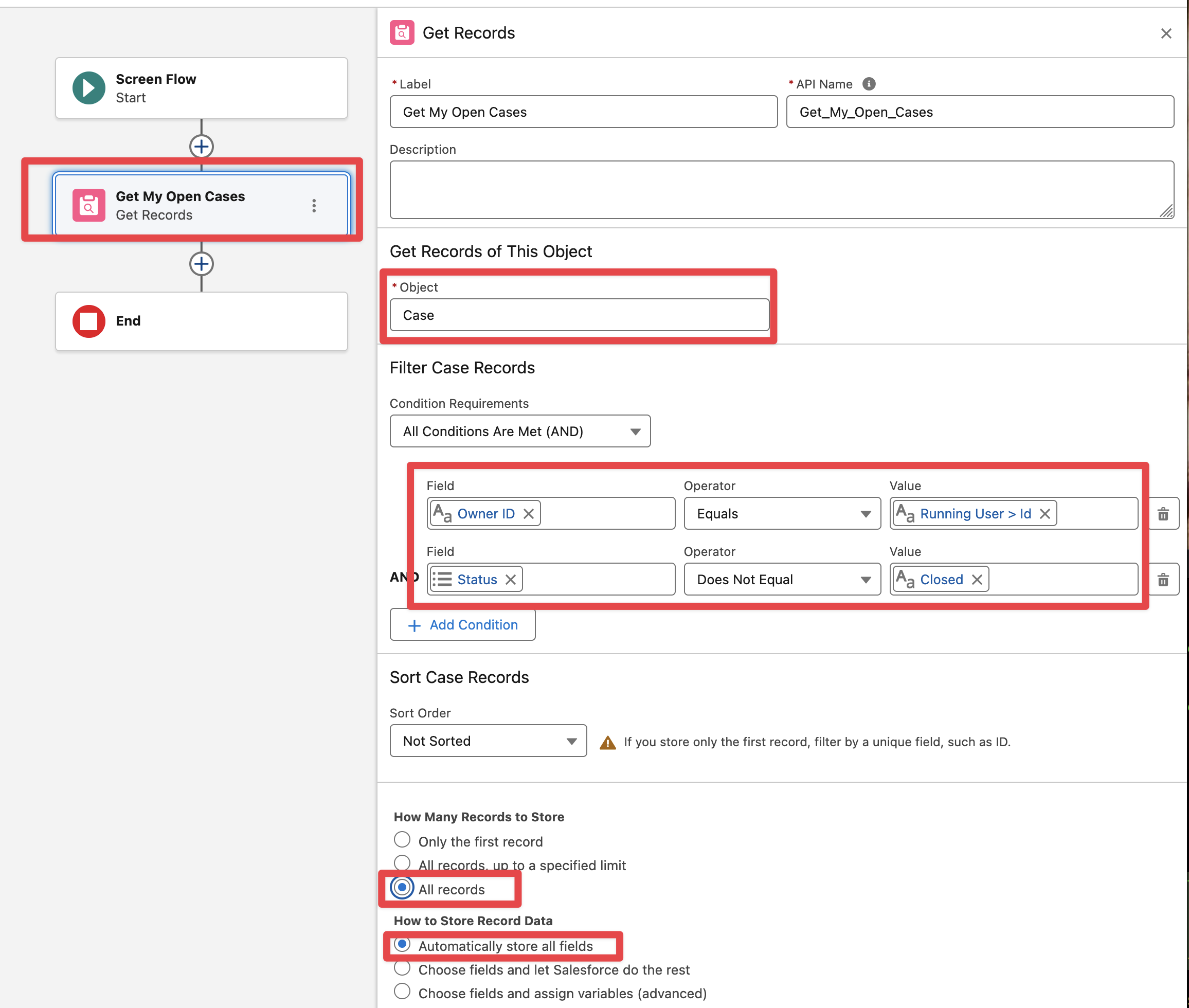
Add a “Get Records“ element to query all the Open Cases whose Owner is the current user
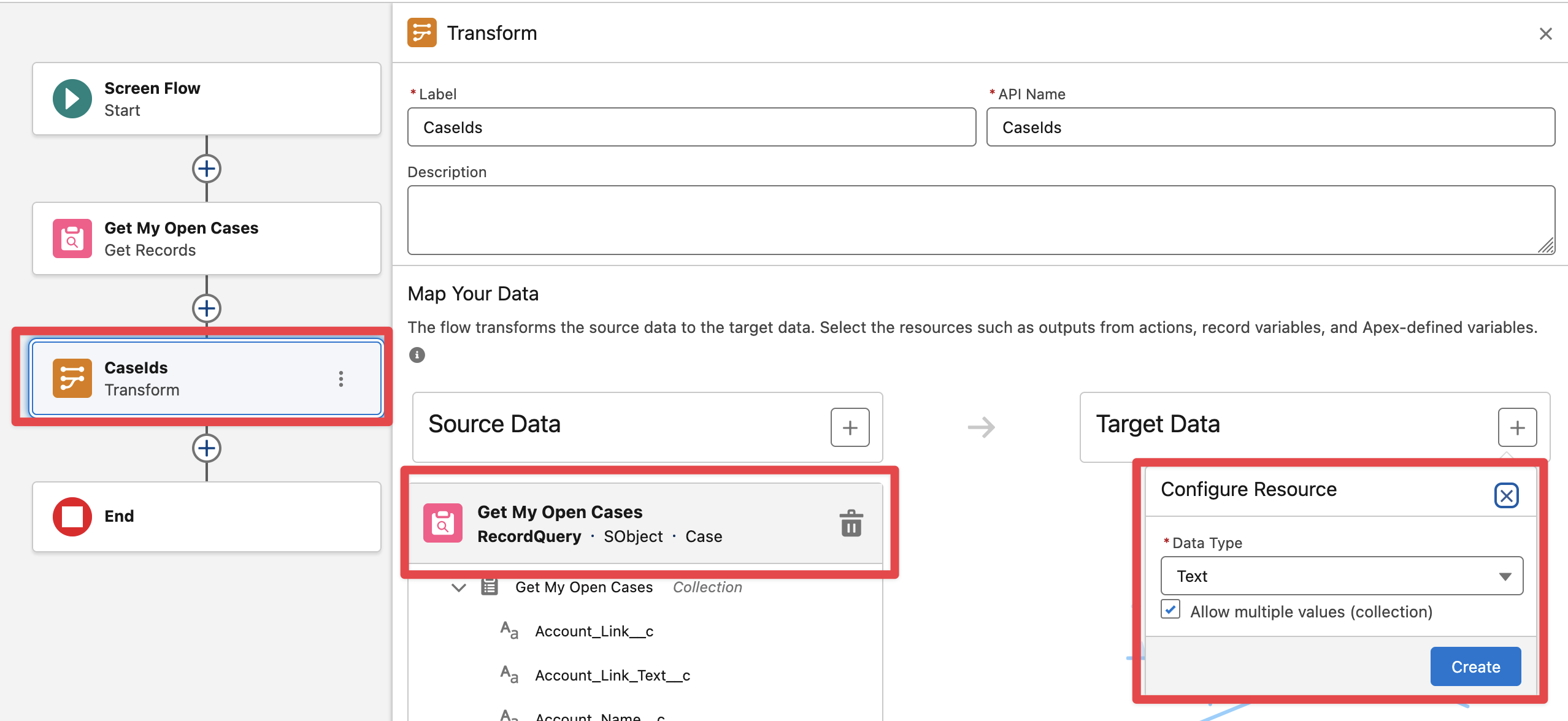
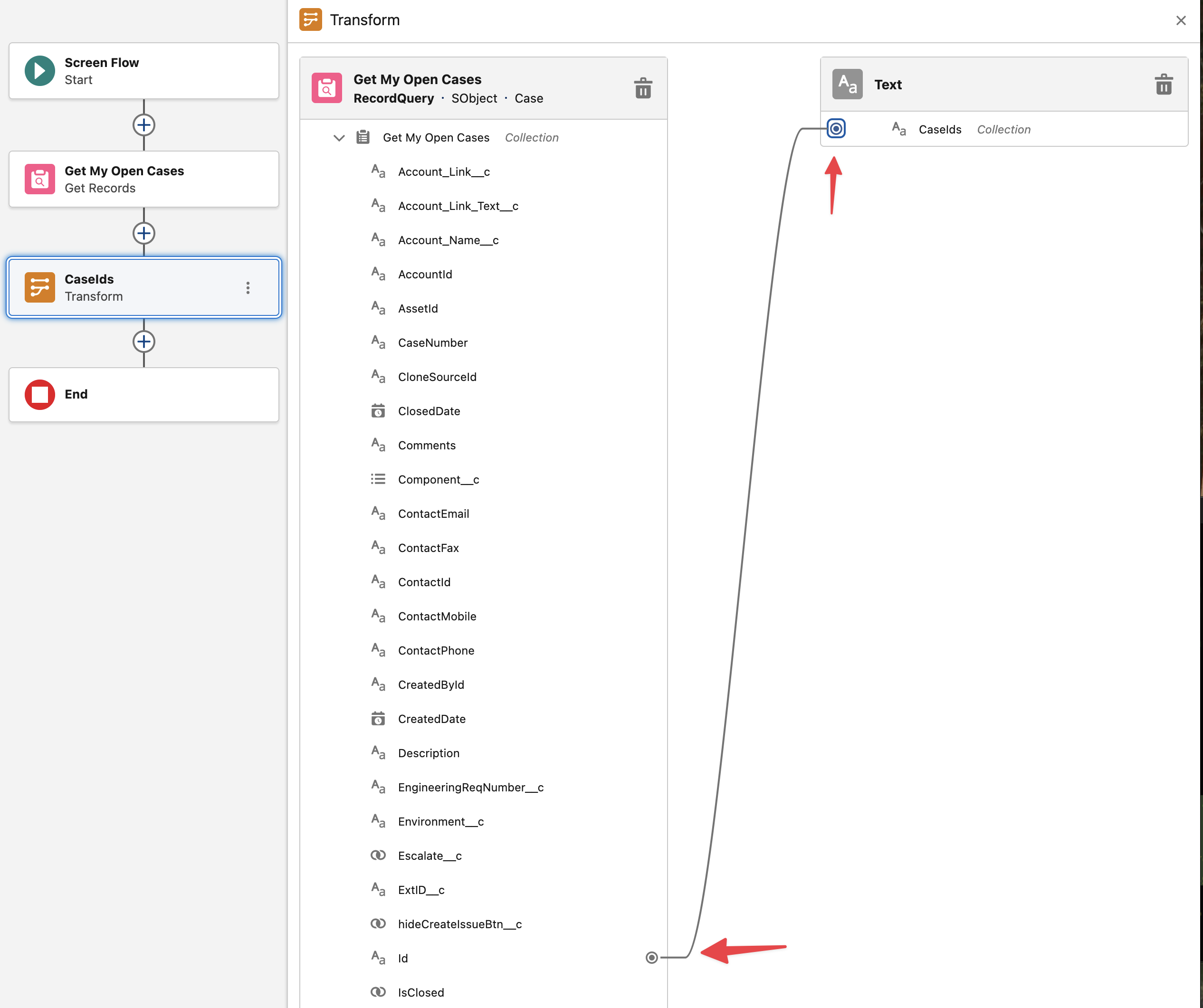
Add a “Transform“ element to collect all the Case Ids from the previous query and set them in a Text Collection
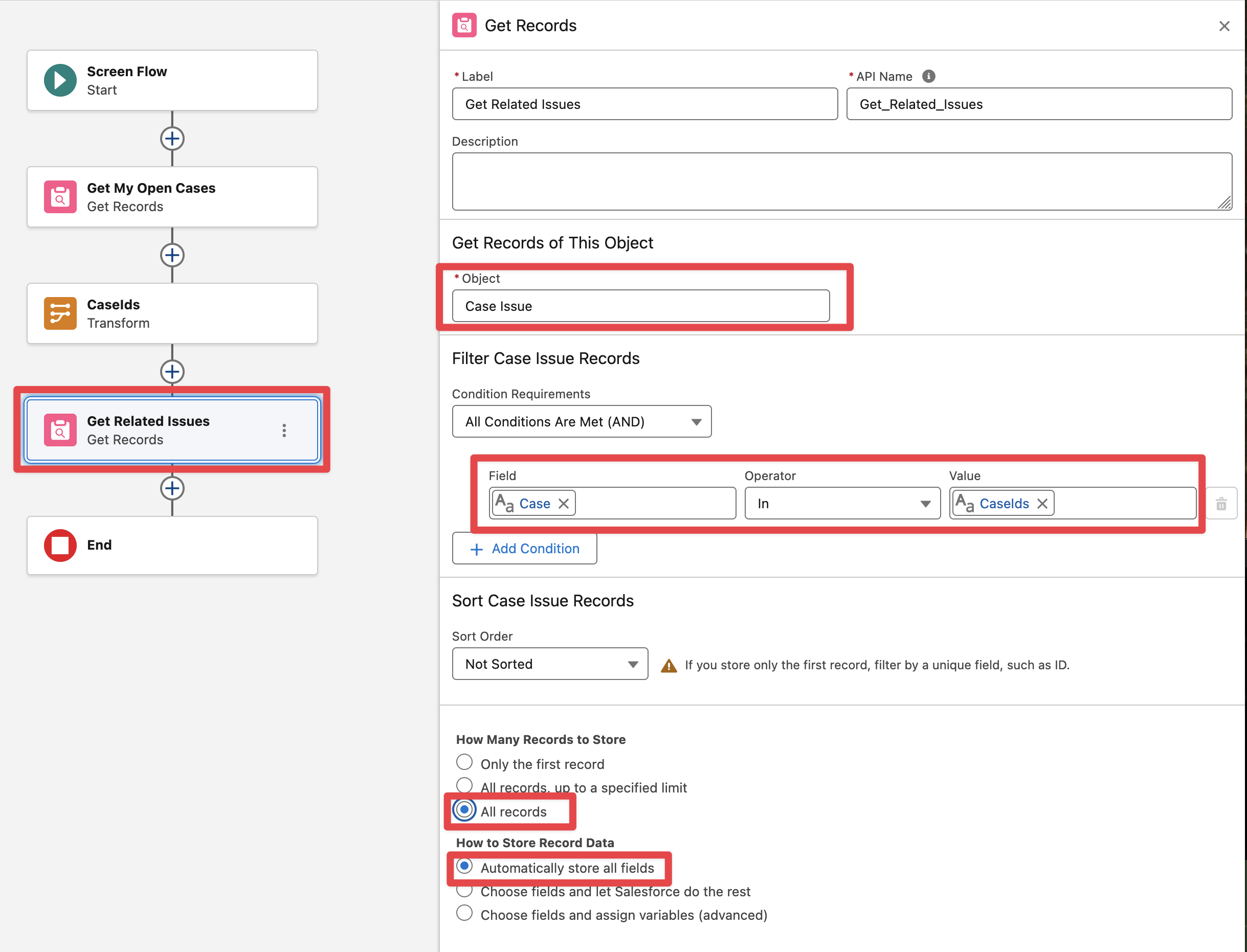
Add another “Get Records“ element to query all the related Issues (Case Issues junction object) for the Open Cases Ids
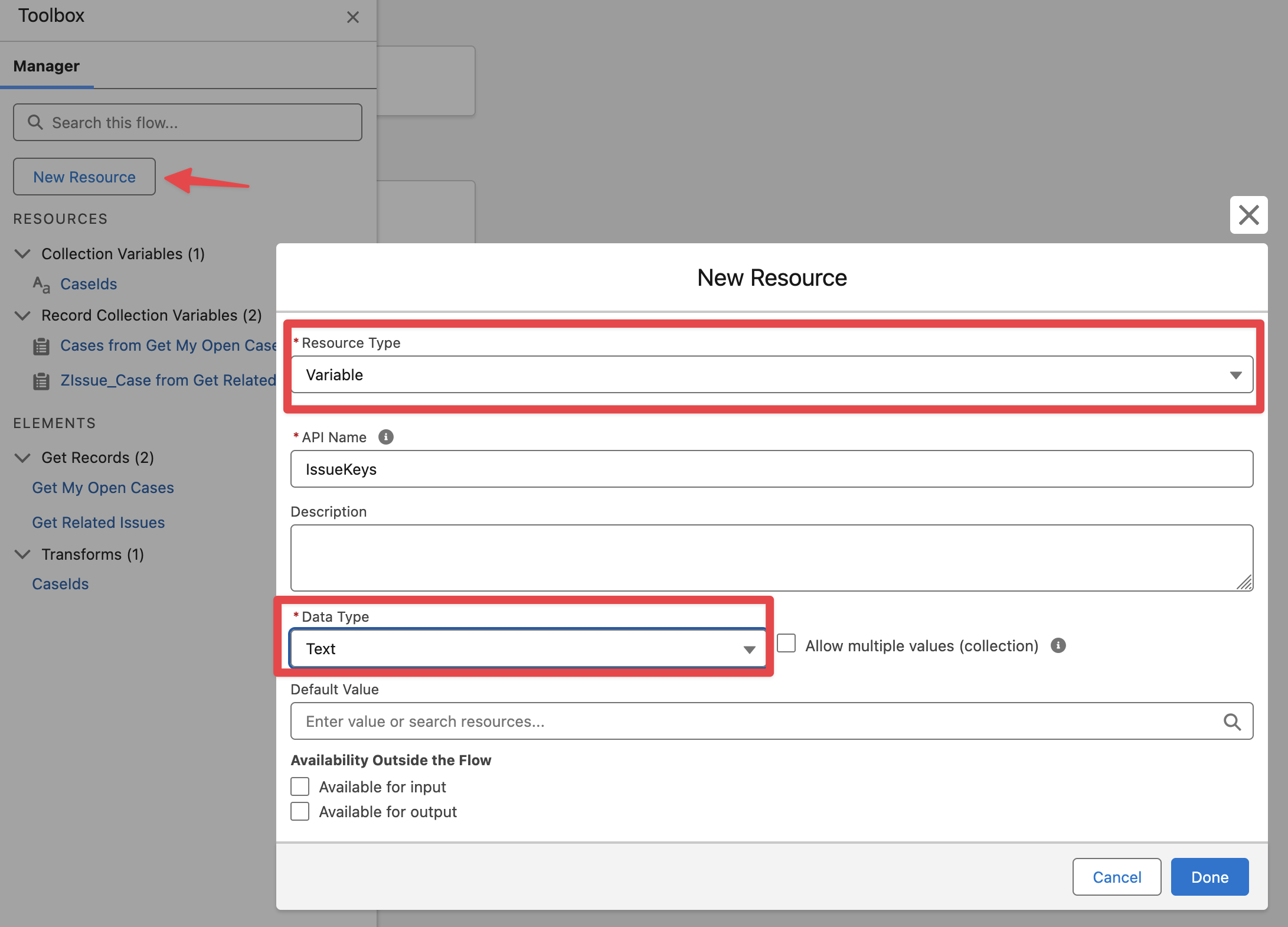
Add a Text Variable resource to concatenate the Issue Keys into a String
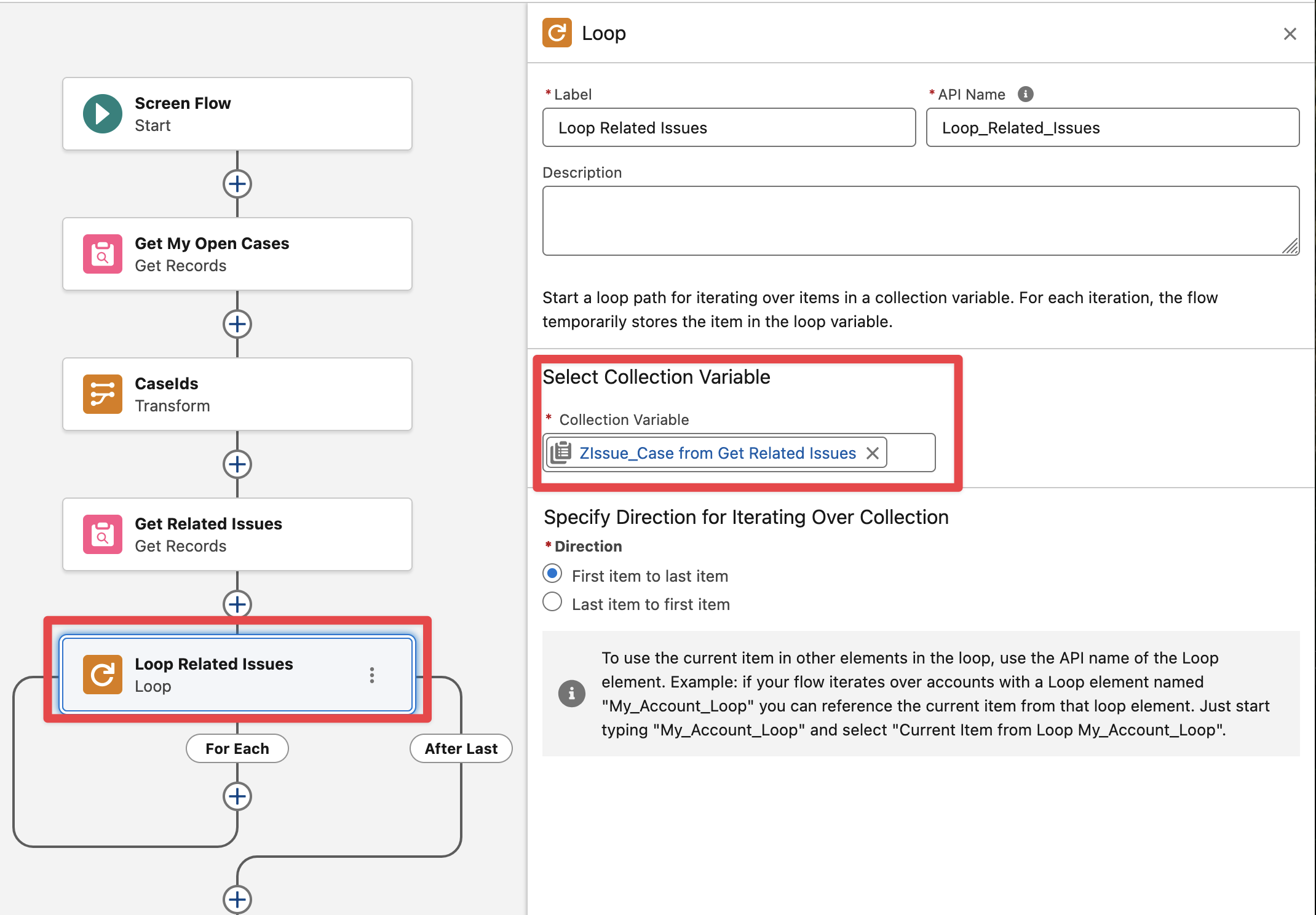
Add a Loop element to iterate over all the Related Issue relationships records
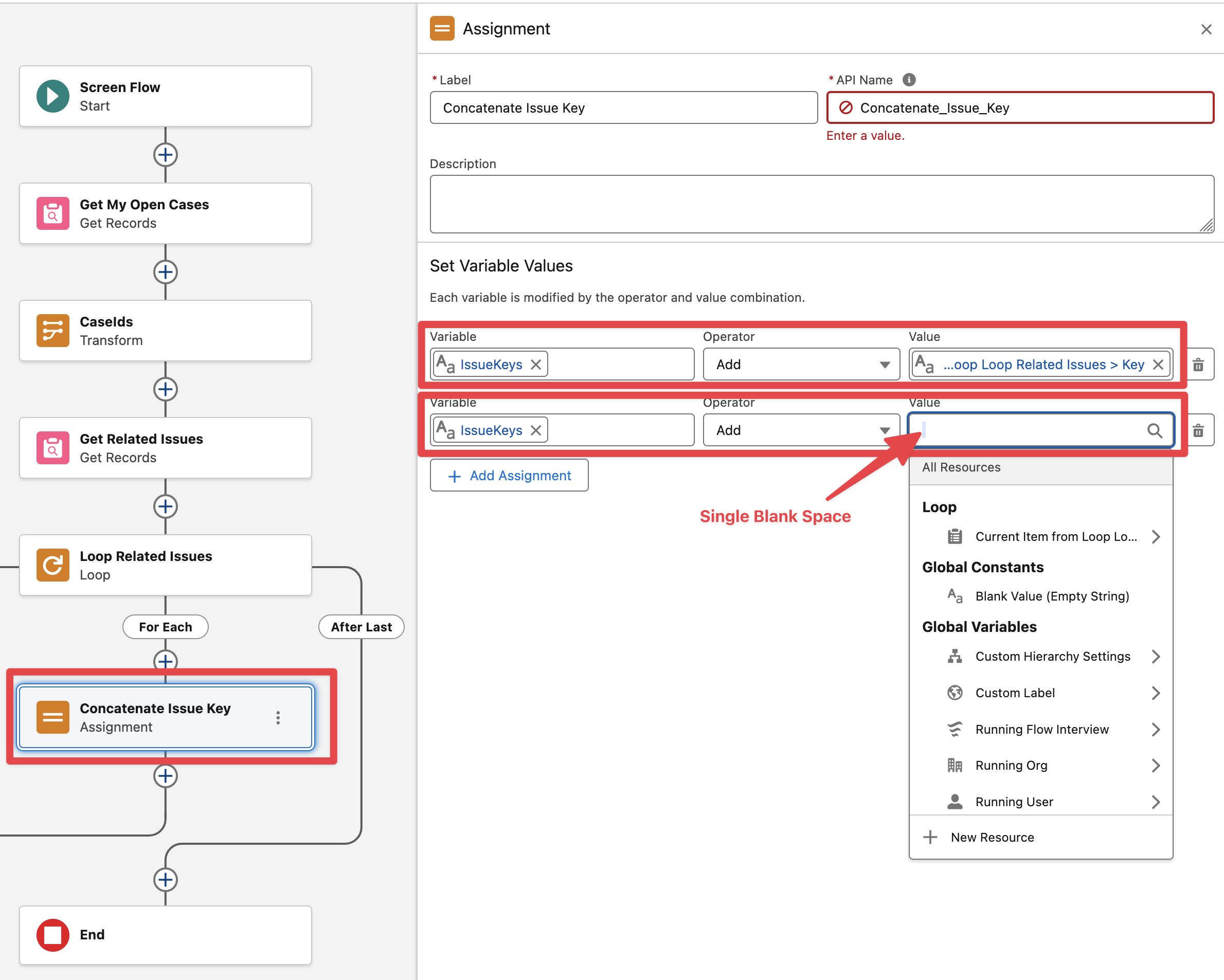
Add an Assignment element in the Loop to append the “Key“ (Issue Key) field from the loop current iteration and also append a Blank space to the Issue Keys text variable
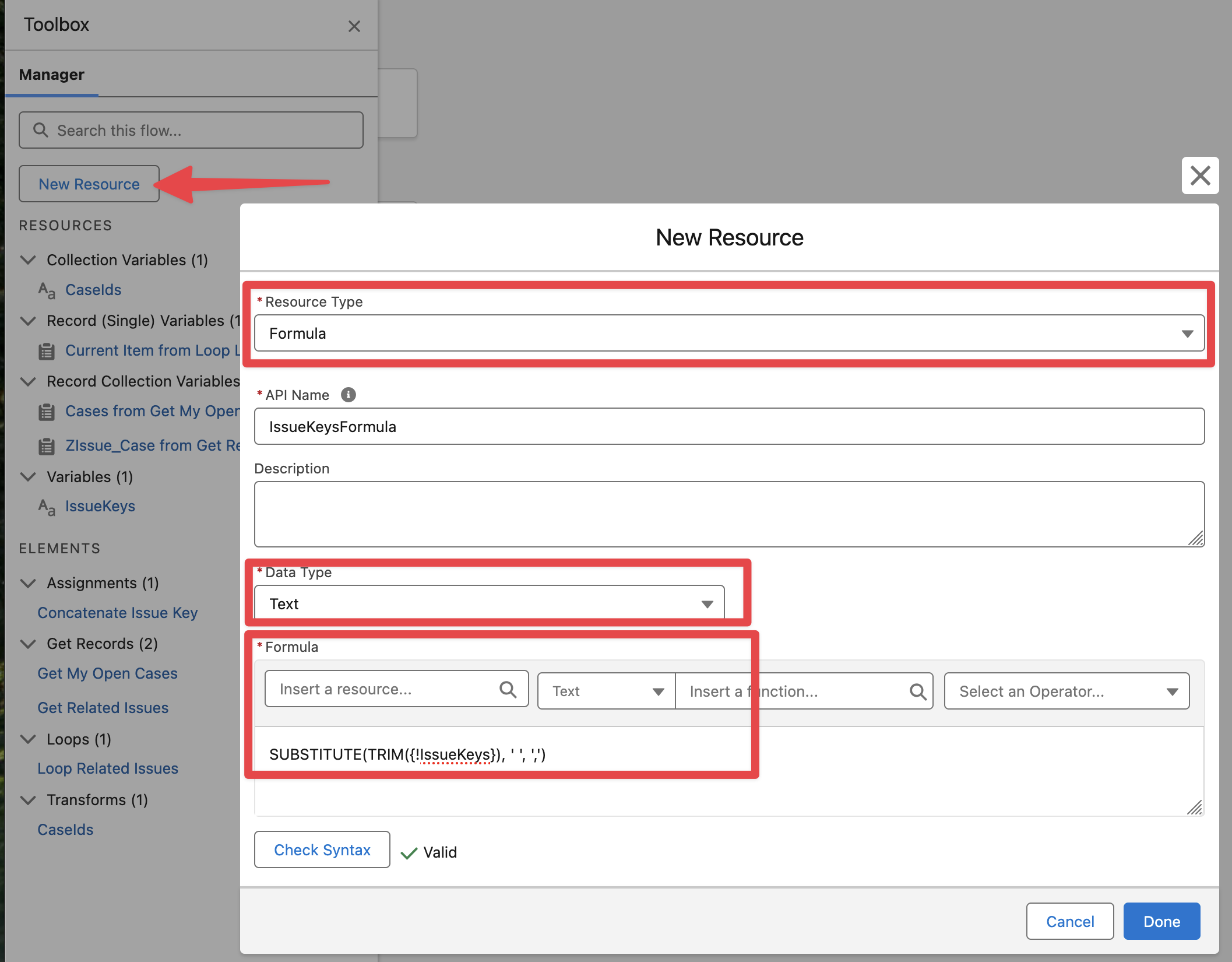
Add a new Text Formula to trim (last blank space) and substitute with ',' (spaces between Issue Keys) from the IssueKeys text variable.
SUBSTITUTE(TRIM({!IssueKeys}), ' ', ',')
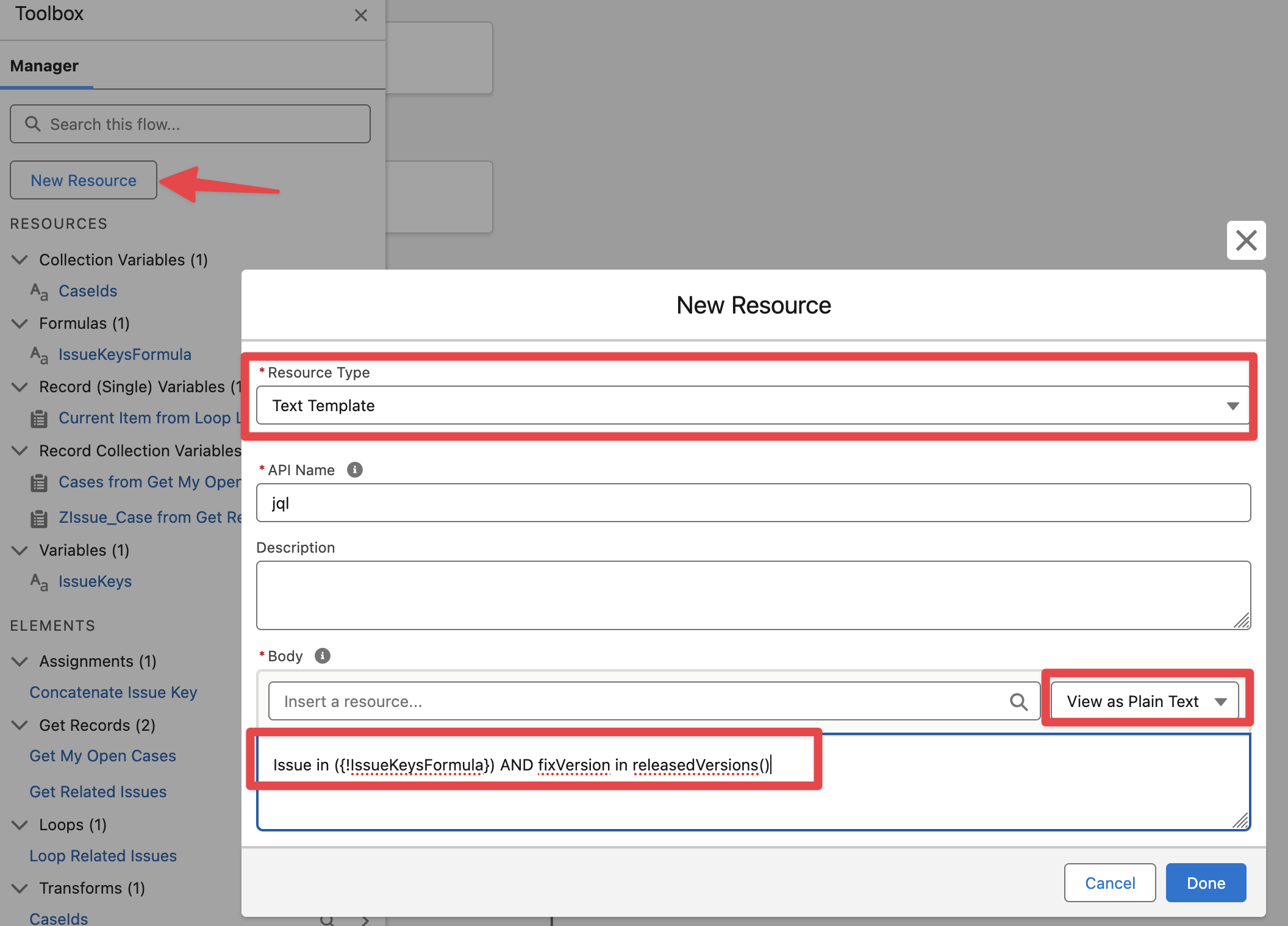
Add a Text Template resource to build the Jira JQL query string. This JQL query filters only the Issues where its fix Version(s) has been released in the Project in Jira for all the Issue Keys we are passing (Issue keys related to ”My” Open Cases)
Issue in ({!IssueKeysFormula}) AND fixVersion in releasedVersions()
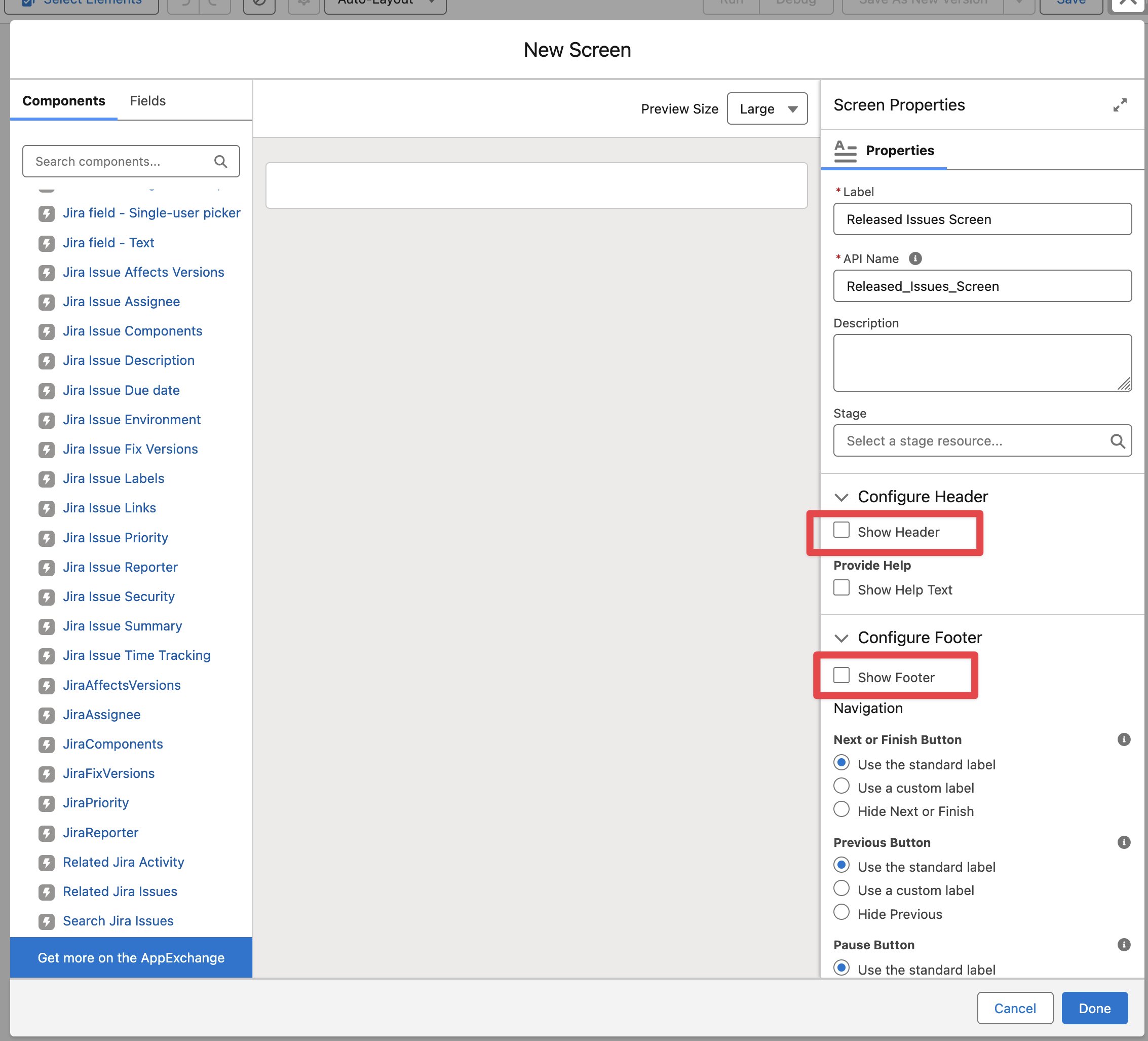
Add a Screen element after the Loop element, hide the header and footer and add the “Search Jira Issues“ component
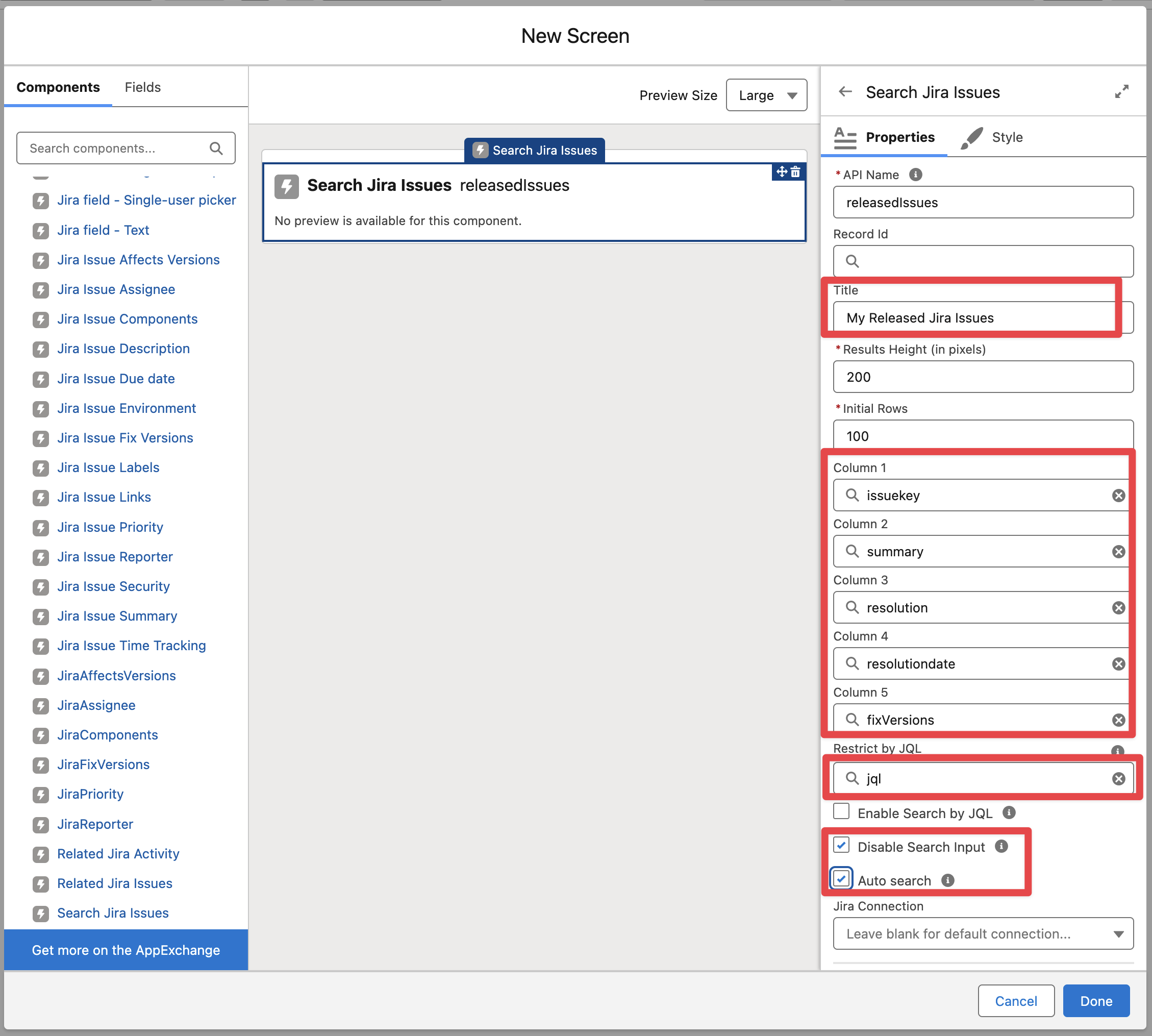
Select which columns (Issue fields) to display and pass the “jql“ text template variable in the “Restrict by JQL“ field. Make sure to enable the “Auto Search“ and to have this component as read only you may want to “Disable the Search Input“.
Finally Save and Activate the flow.