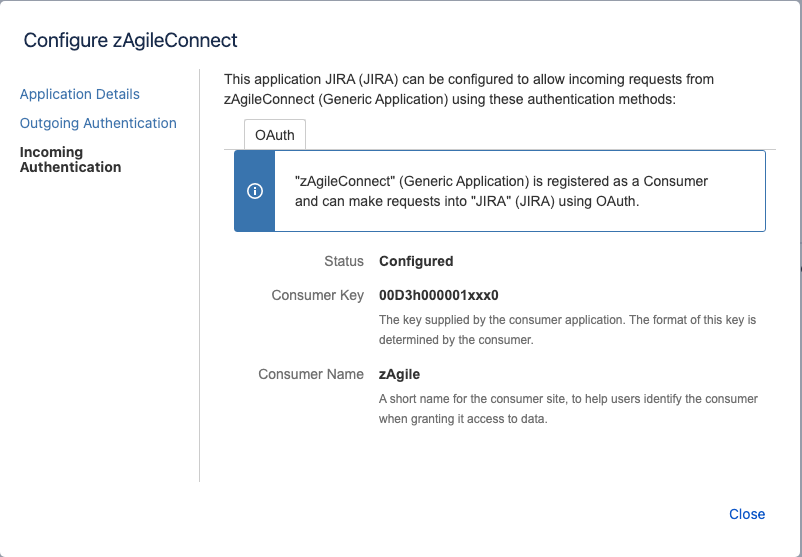
In Jira Settings → Jira Apps → Application Links, create a new link for Salesforce, using the URL of your Salesforce instance (example: https://zcod2020-stg.my.salesforce.com/)
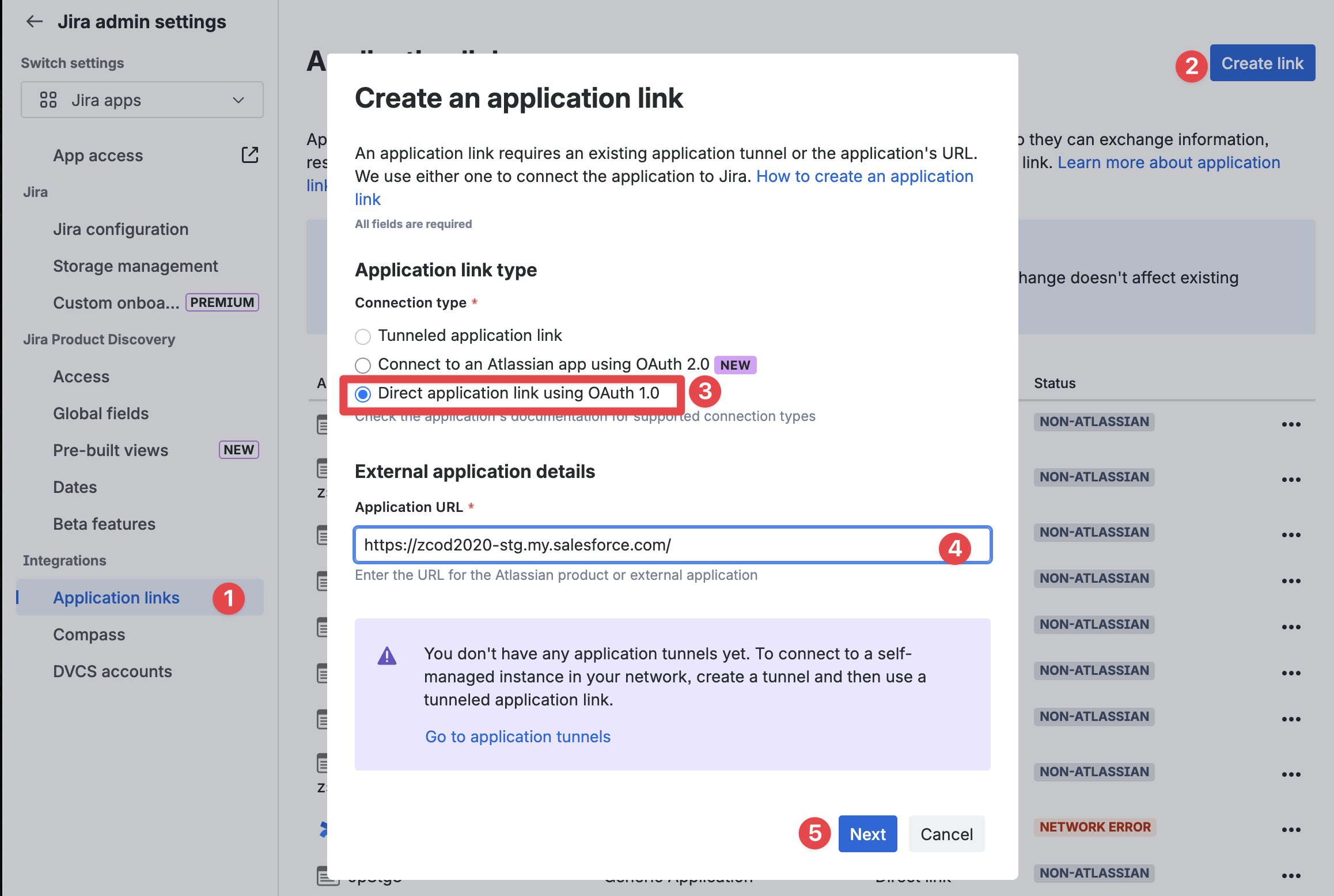
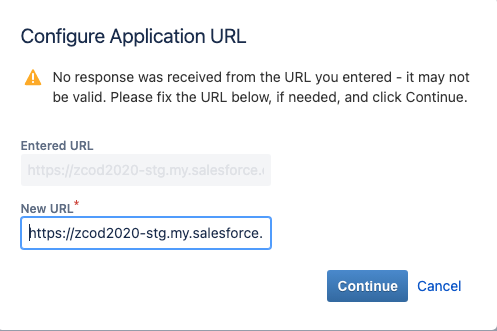
Continue with manual configuration when the following pop up is displayed,
enter Application Name and Continue
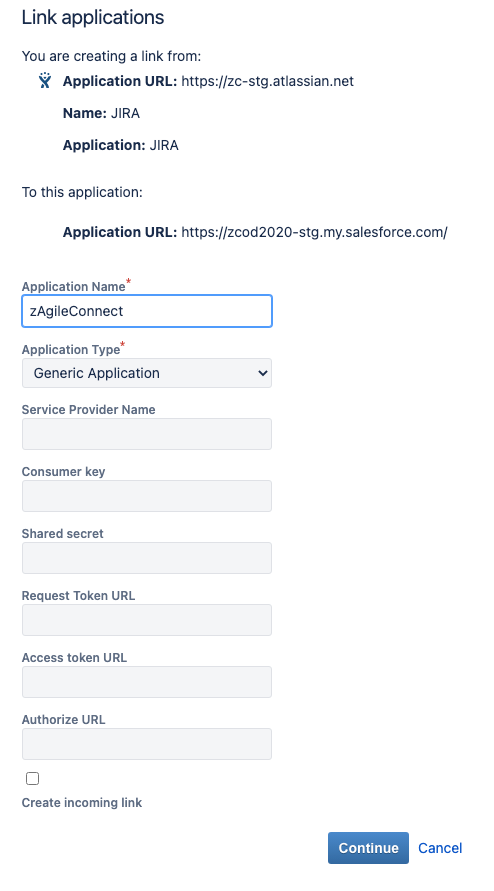
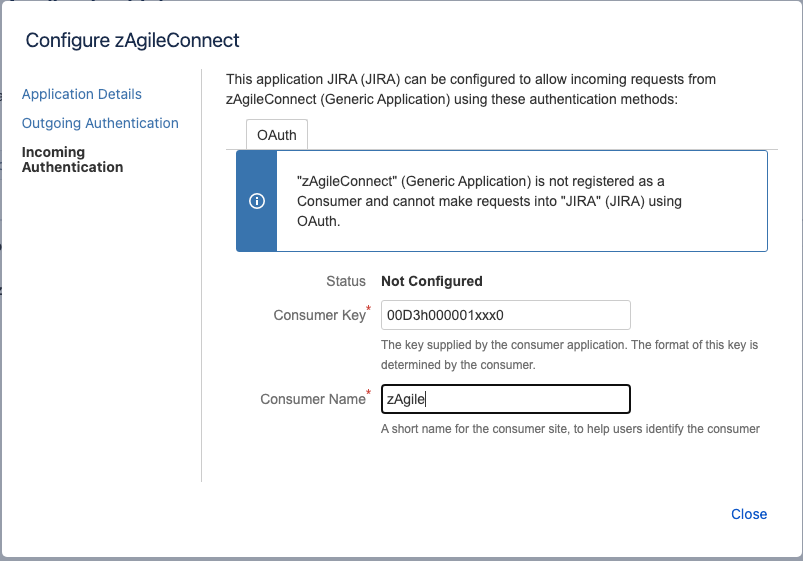
Once the link is created, Edit the link to update Incoming Authentication and upload the certificate created in Salesforce

Consumer Key (as shown below) must be the ID of the Salesforce Org which will log into Jira
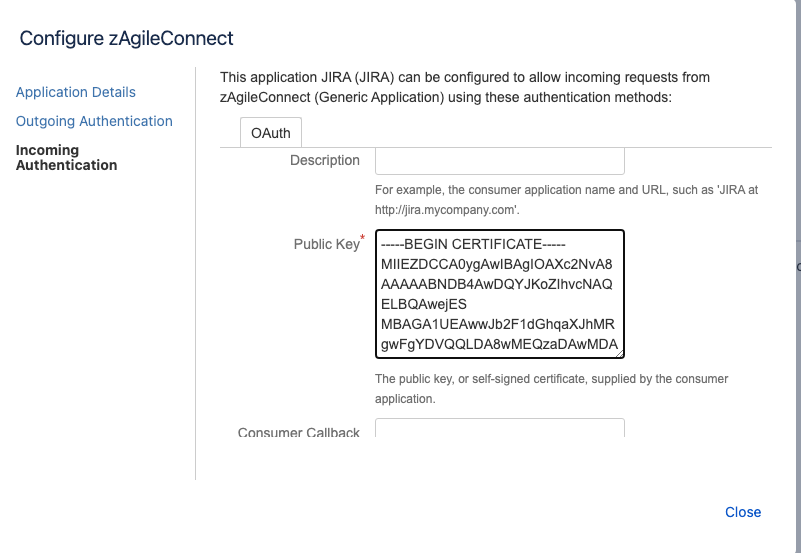
Paste the certificate downloaded from Salesforce in the Public Key text box (as shown below).
Please make sure to open the certificate in a text editor (with no formatting) and copy/paste the entire content of the cert including the BEGIN–>END brackets.
Save the configuration and close the window