
Who does this impact?
zAgileConnect customers who have:
-
one or more Atlassian-hosted Jira (Jira Cloud) instances integrated with Salesforce
What action is required?
zAgileConnect customers are now asked to create an ‘External Client App’ (ECA) to connect their Jira Cloud instance(s) to Salesforce. This ECA replaces the Connected App that is currently provided by zAgile.
Customers have until September 30 to complete this migration to avoid service disruption.
Background
Salesforce is moving towards the use of External Client Apps (ECA) for access to Salesforce data from external applications. The External Client Apps replace the Connected App model that is currently in place. This move follows a number of steps the Salesforce platform is taking towards modernizing its security posture.
For more details, please refer to the following post from Salesforce: https://help.salesforce.com/s/articleView?id=005228017&type=1
See Salesforce Platform: New Connected Apps Can No Longer Be Created in Spring '26 for more details.
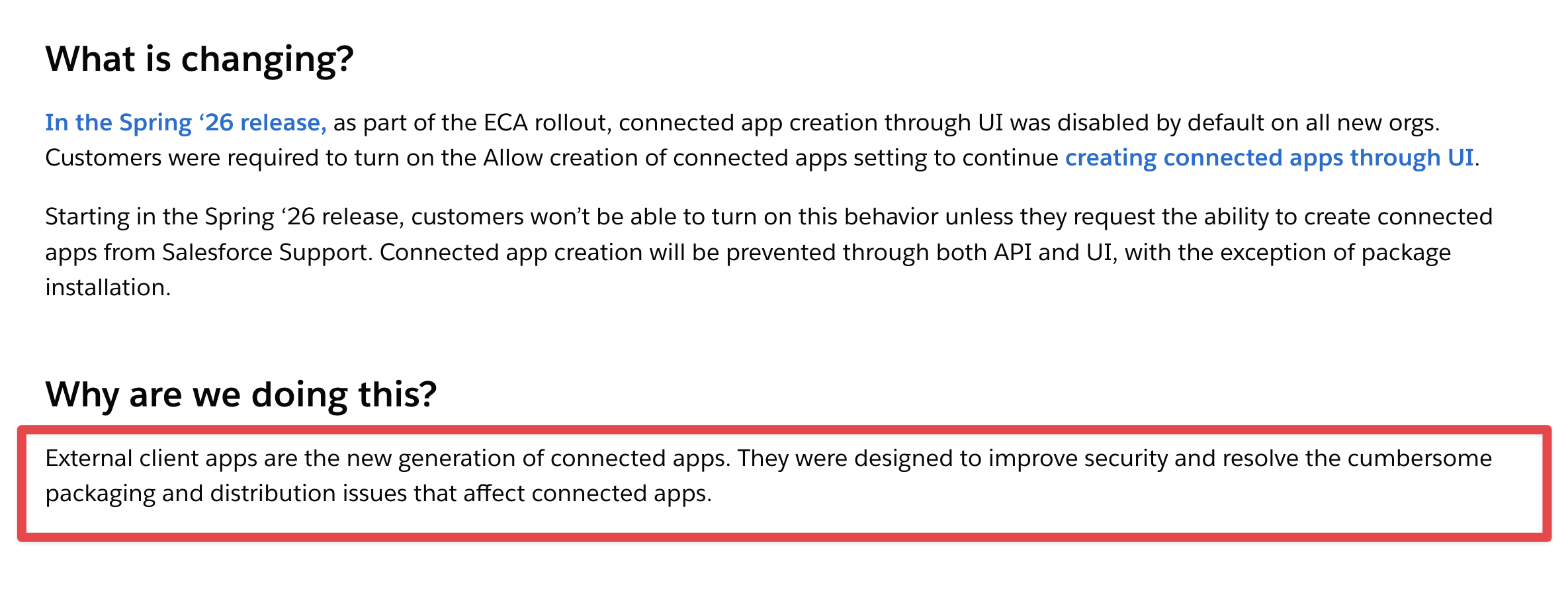
As a result of this, zAgile will start enforcing the use of External Client Apps in zAgileConnect for Jira Cloud. Customers are required to migrate to an External Client App for the connection from Jira to Salesforce by no later than September 30, 2026.
Migrating from Connected App to an External Client App involves the following steps and should take < 15 minutes. The steps will require both Salesforce and Jira Admin privileges.
-
Step 1 - Enable External Client App (ECA) in the zAgileConnect Jira Cloud add-on and capture the Callback URL for use in the ECA created in Salesforce (Step 2 below)
-
Step 2 - Create an External Client App (ECA) in Salesforce using this Callback URL
-
Step 3 - Populate Consumer Key and Consumer Secret from this ECA in the zAgileConnect Jira add-on
-
Step 4 - Authenticate Jira to Salesforce
-
Step 5 - Uninstall the old Connected App
The following section describes these steps in more detail.
Migration Steps
1. Enable an External Client App in zAgileConnect Jira Cloud Add-on
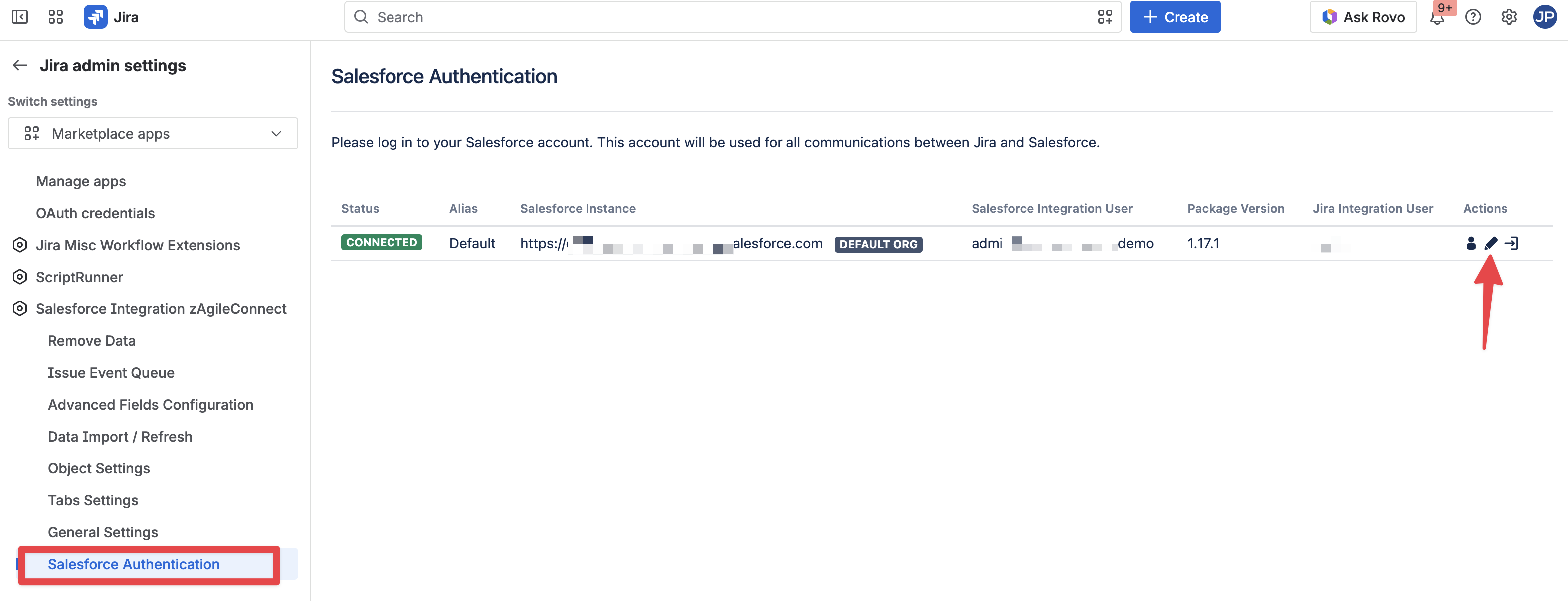
In Jira Setting → Marketplace Apps section via Salesforce Authentication option, edit the connection(s) to Salesforce and expand the Advanced Options, make sure the “Use my own Salesforce External Client App” option is enabled.
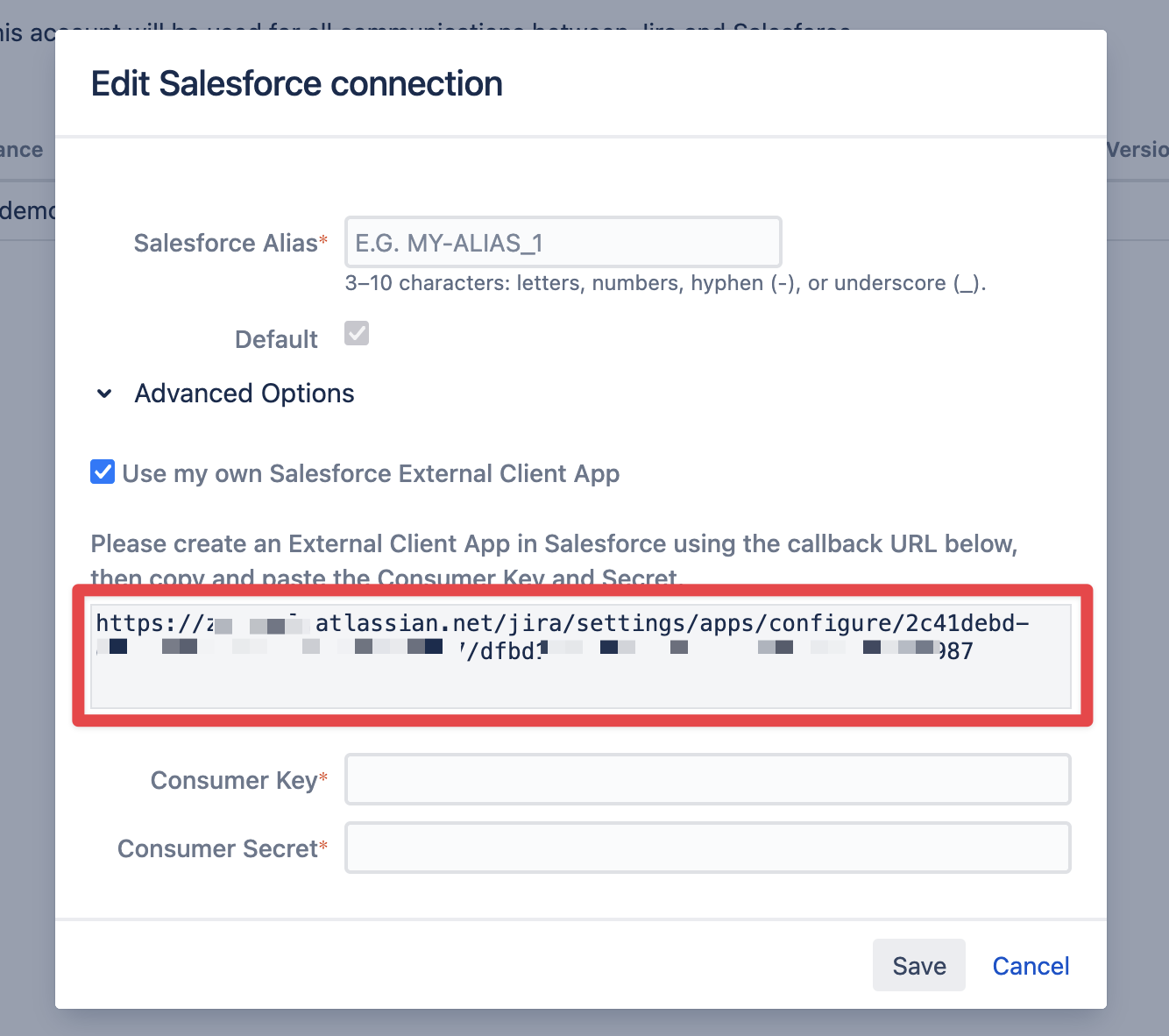
Copy the Callback URL for use in Step 2 below.
2. Create an External Client App in Salesforce using this Callback URL
in Salesforce go to Setup->App Manager and define an entry for External Client App with key parameters as shown below:
The Jira callback URL for this will be the URL copied from Step 1 above.
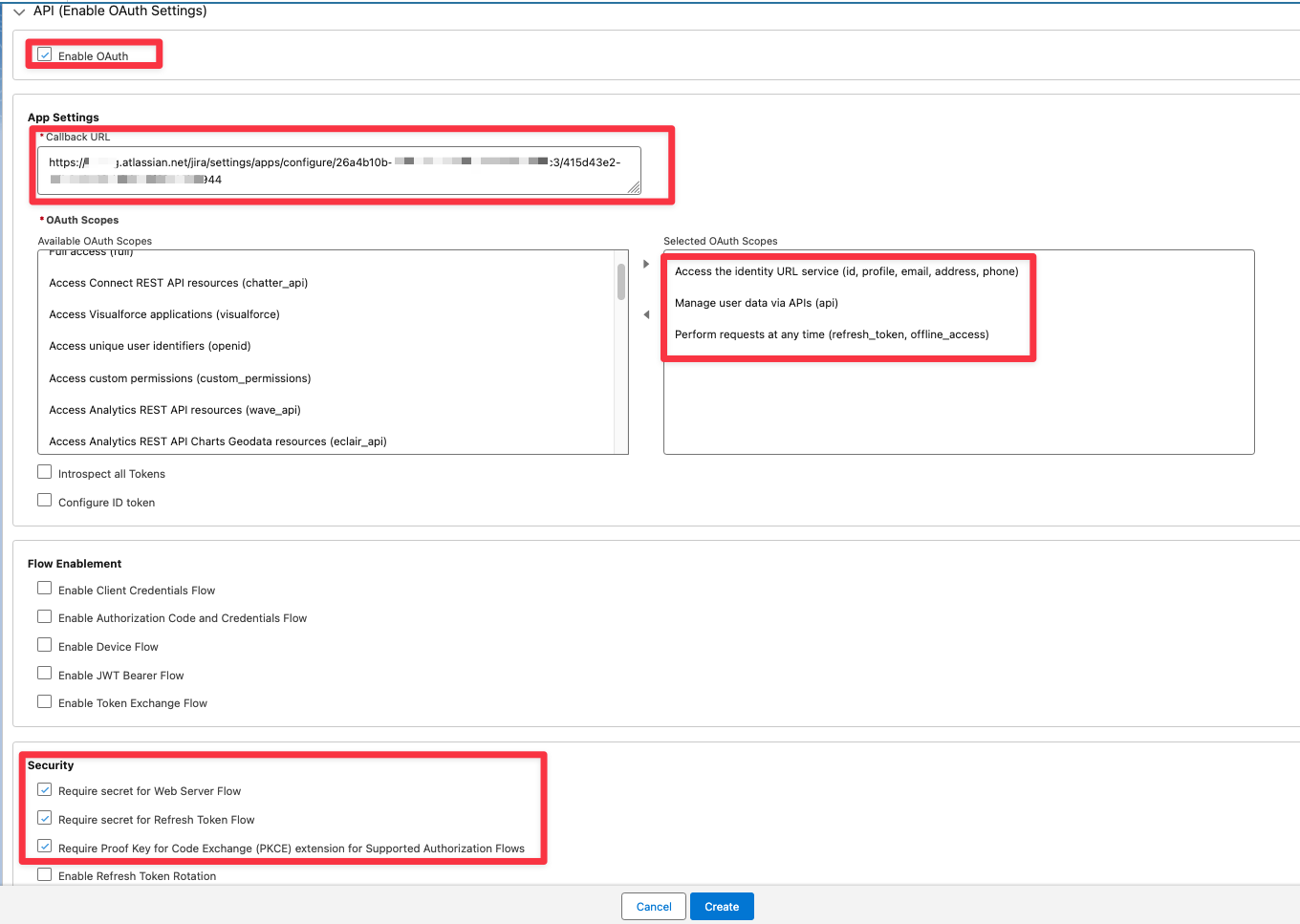
This will result in the generation of Consumer Key and Consumer Secret tokens (shown below).
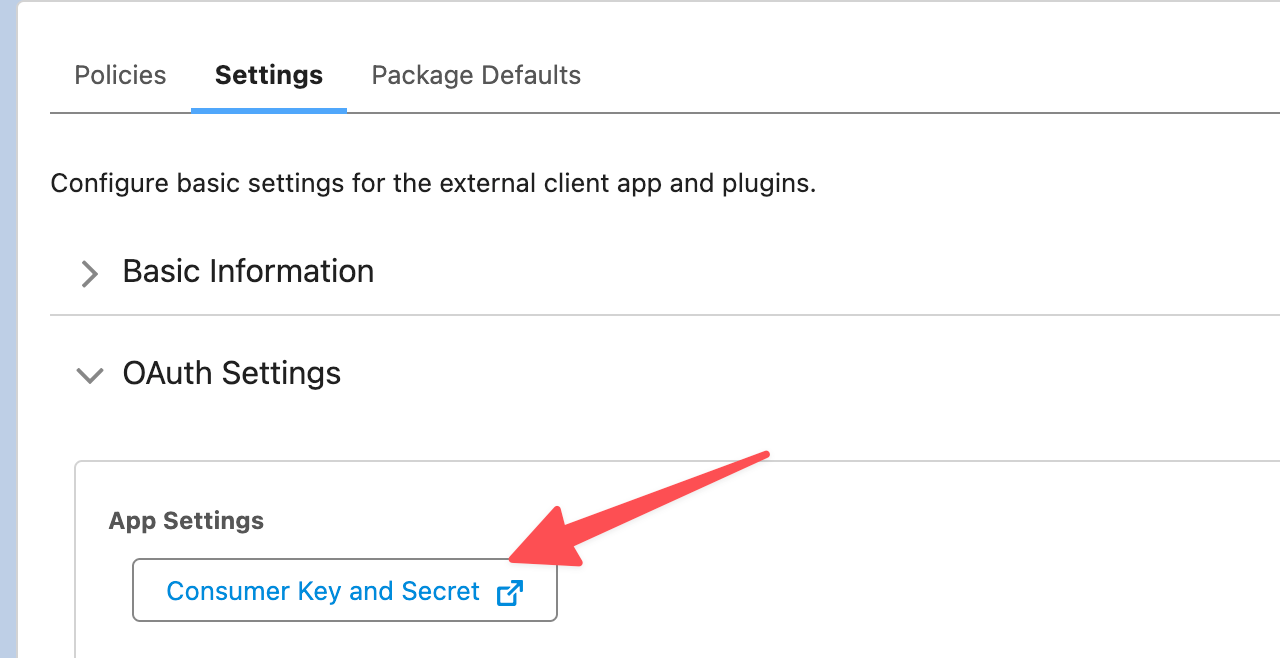
3. Populate Consumer Key and Consumer Secret tokens from this ECA in the zAgileConnect Jira add-on
Once you have setup an External Client App in Salesforce, you can copy and paste the Consumer Key and Consumer Secret from Salesforce into Jira in the “Edit Salesforce Connection“ popup and save.
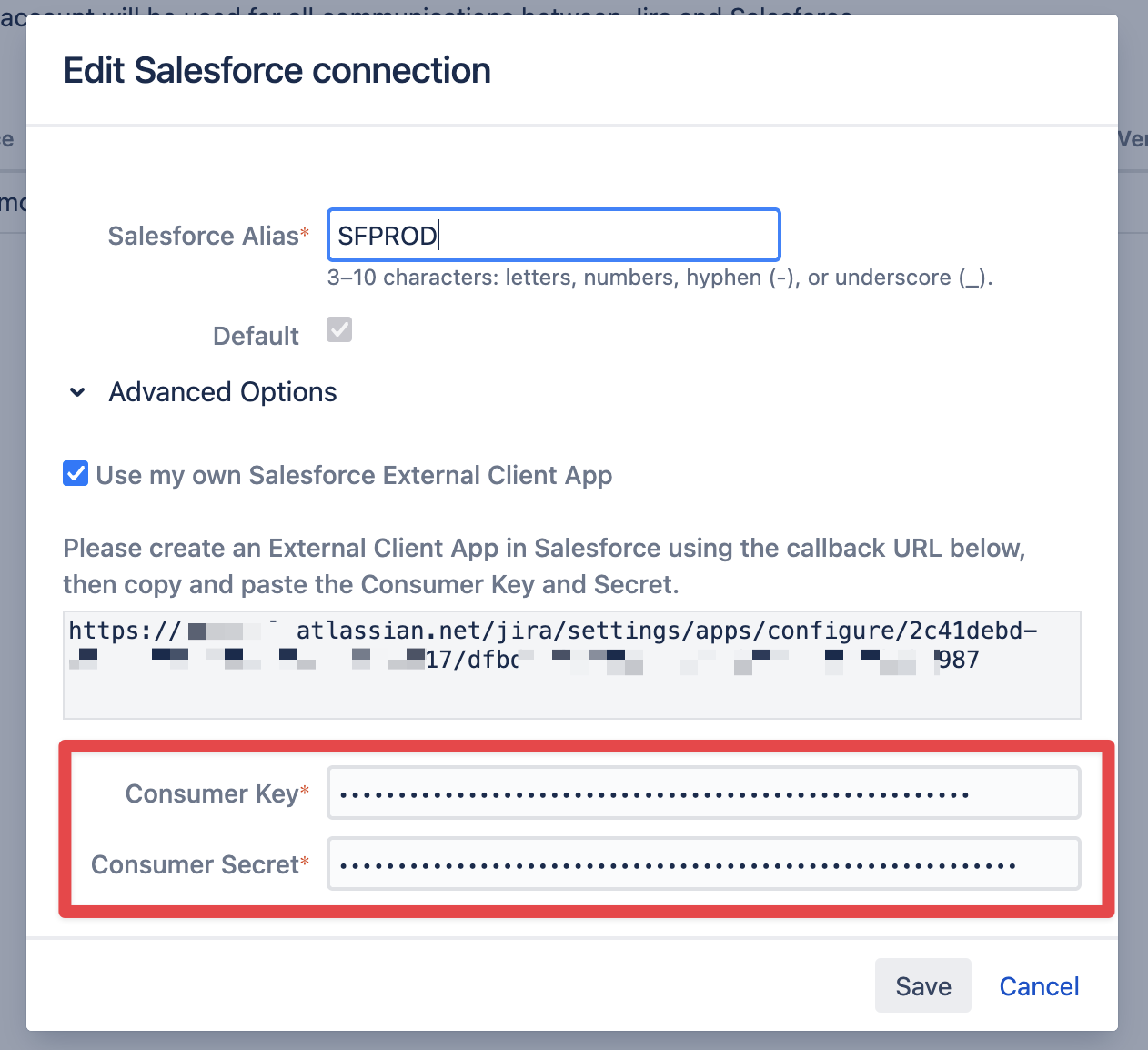
4. Authenticate Jira to Salesforce
In Jira, re-authenticate to Salesforce. You will get redirected to Salesforce to enter the credentials of the Salesforce Integration User.
Note that the External Client App may take some minutes to be ready (you may get “invalid client Id” if it is not ready).
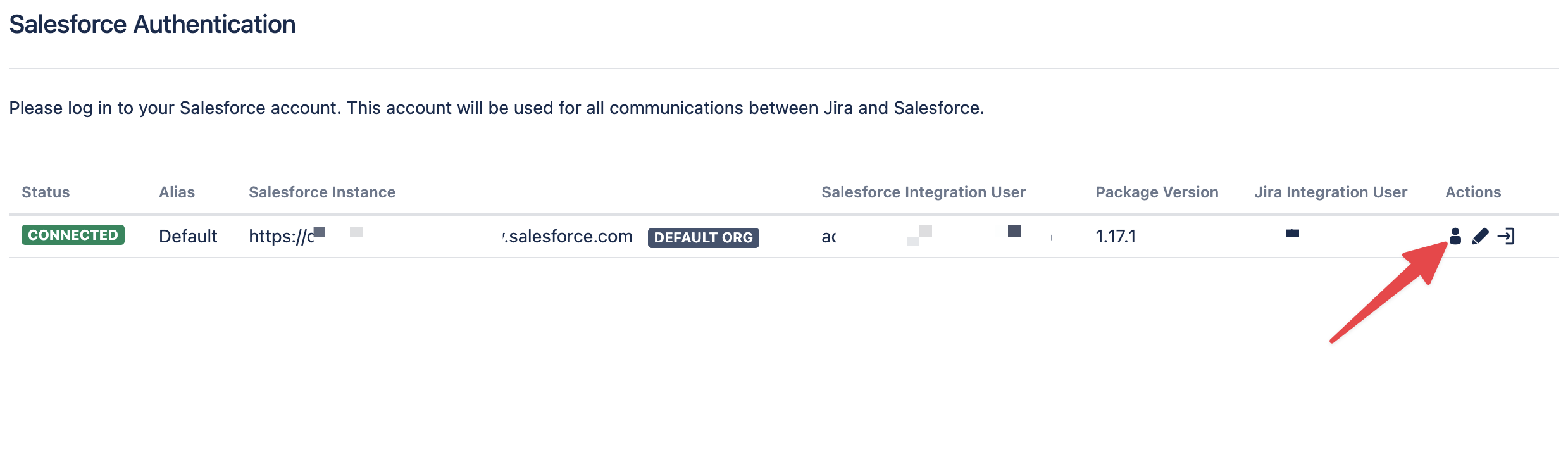
Once authentication is successful, you will be redirected back to Jira, review the Connection Information.
5. Uninstall the old Connected App
In Salesforce, go to Setup → Connected Apps OAuth Usage and find the “zcapp_production“ connected app, then click on the user count and use the “Revoke All” button.

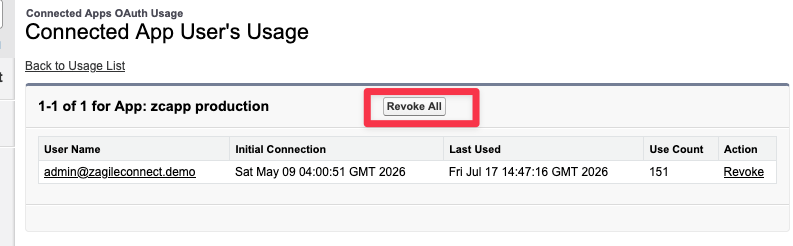
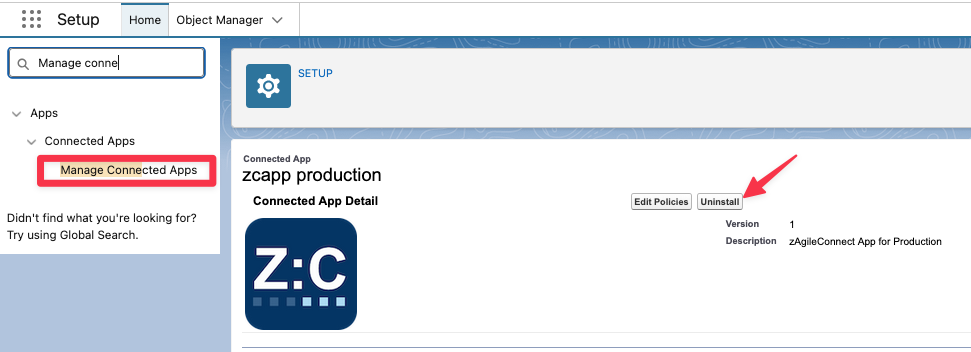
In Salesforce Setup → Manage Connected Apps, find the “zcapp_production“ connected app and open it, then use the Uninstall button.
Note: If the connected app is not listed, it was not previously installed by a Salesforce admin. In this case, revoking usage in the previous step is sufficient.
Video