
Once the Confluence space is enabled for publishing to Salesforce Knowledge, each page will display 'Publish Page to Salesforce' option in the Apps menu, as shown below.
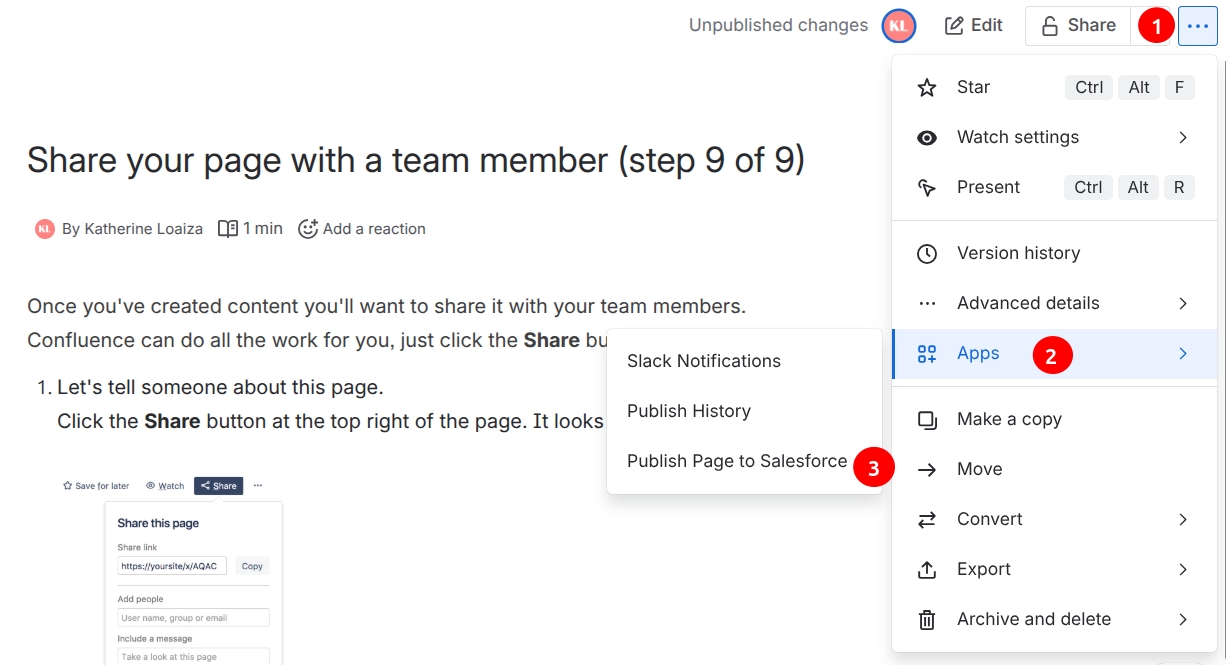
The steps for publishing a single page to Salesforce involve:
-
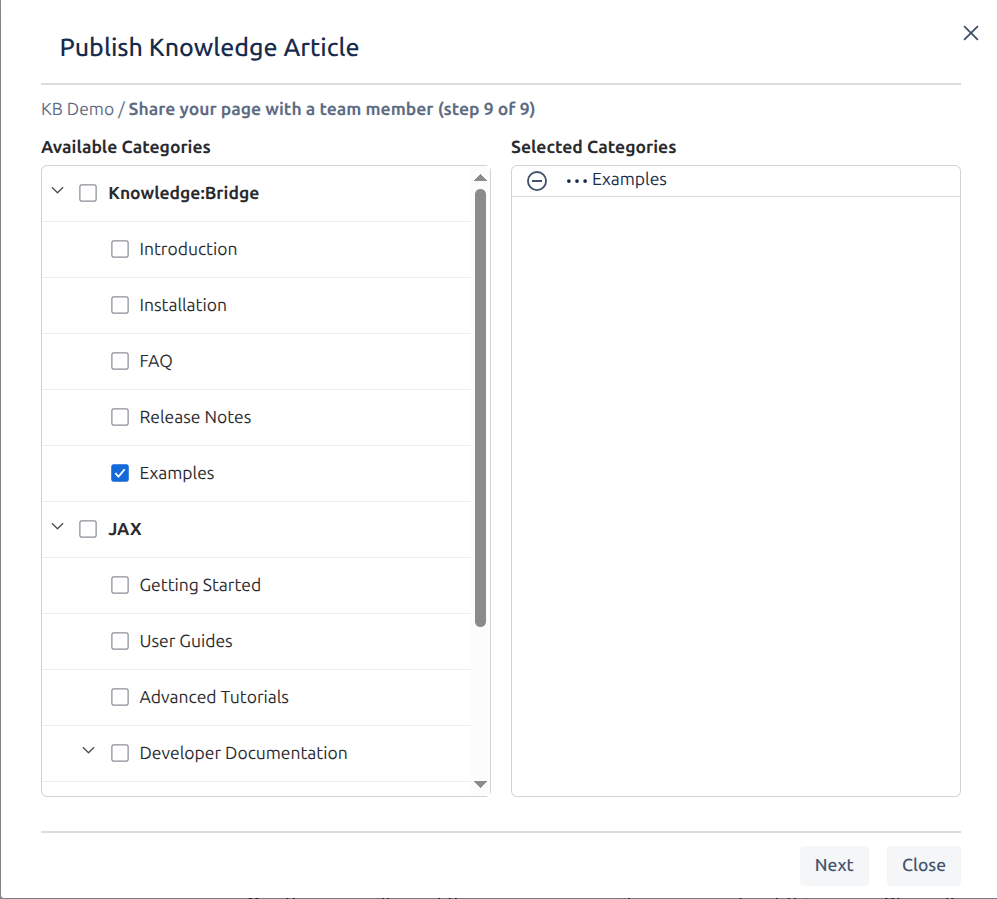
Selecting the Categories to assign to the Article in Salesforce
-
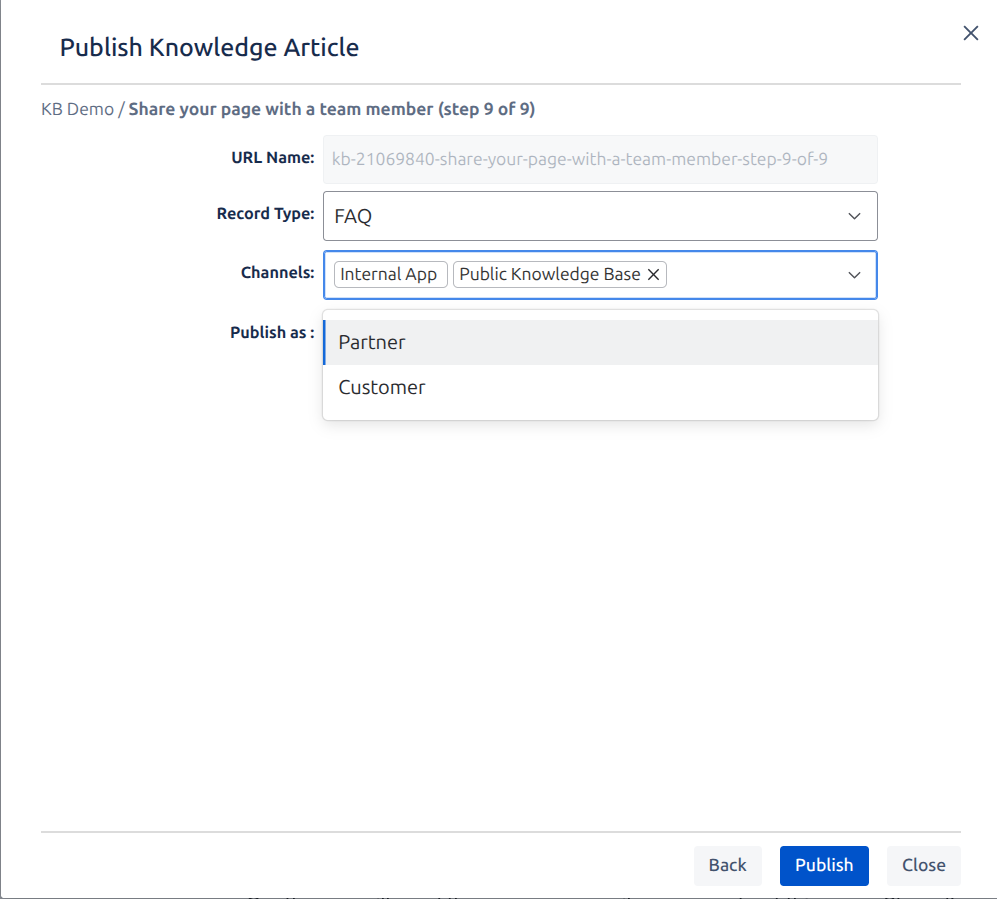
Selecting Record Type, Channel(s), etc.
-
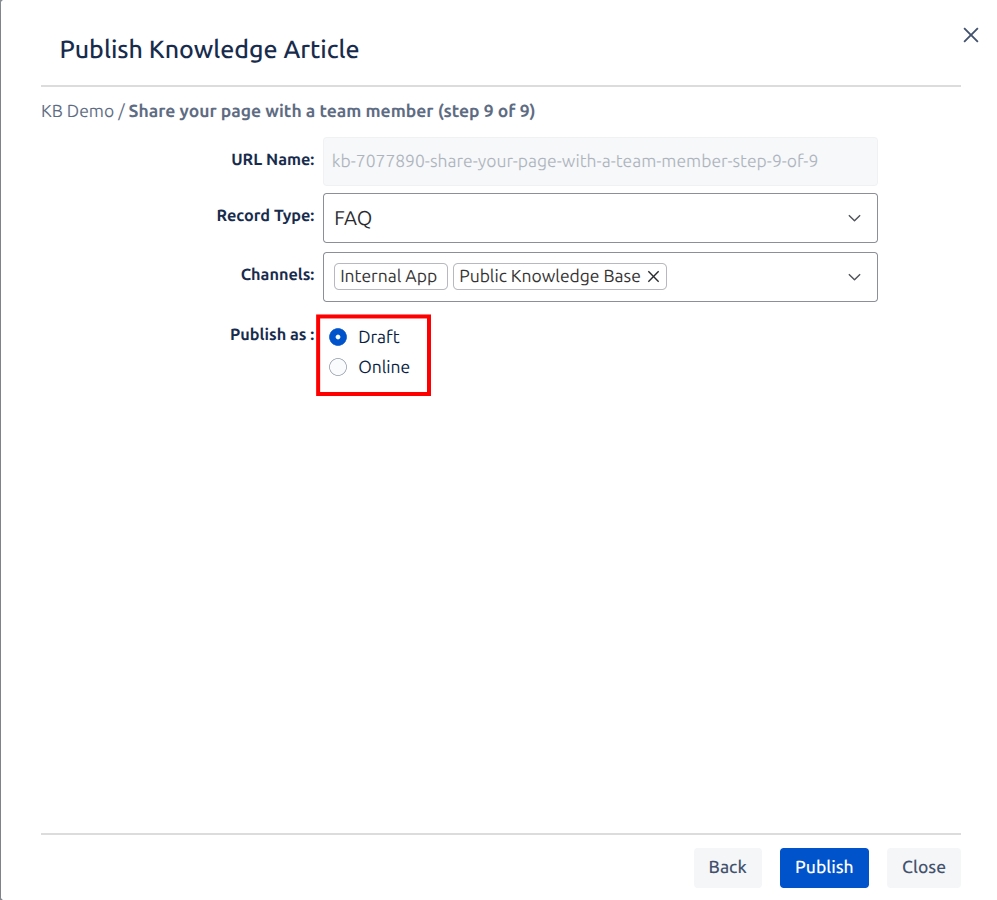
and whether to publish the page in ‘Draft’ or 'Online' mode
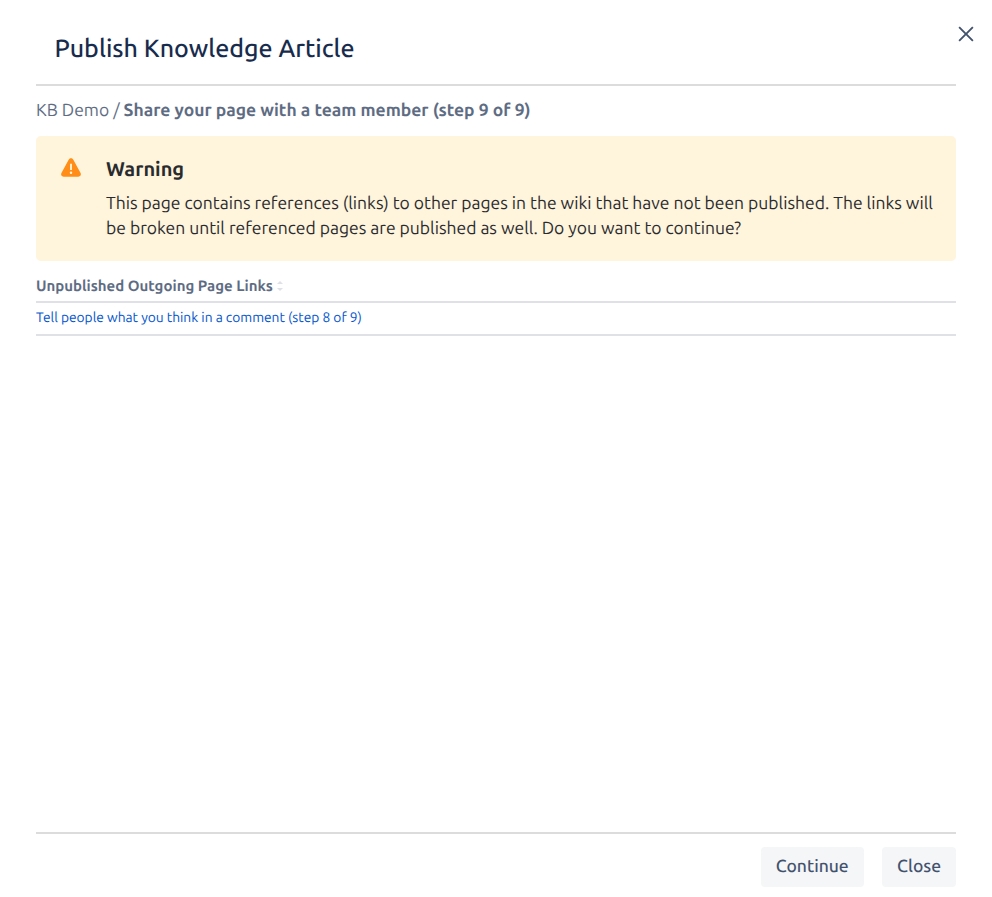
If the page being published has references (links) to other pages in Confluence not yet published in Salesforce, these references are flagged. In such scenarios, the link to the corresponding page will navigate to a non existing Knowledge Article in Salesforce. Alternatively, you can choose to publish all of those pages to Salesforce before or after continuing.
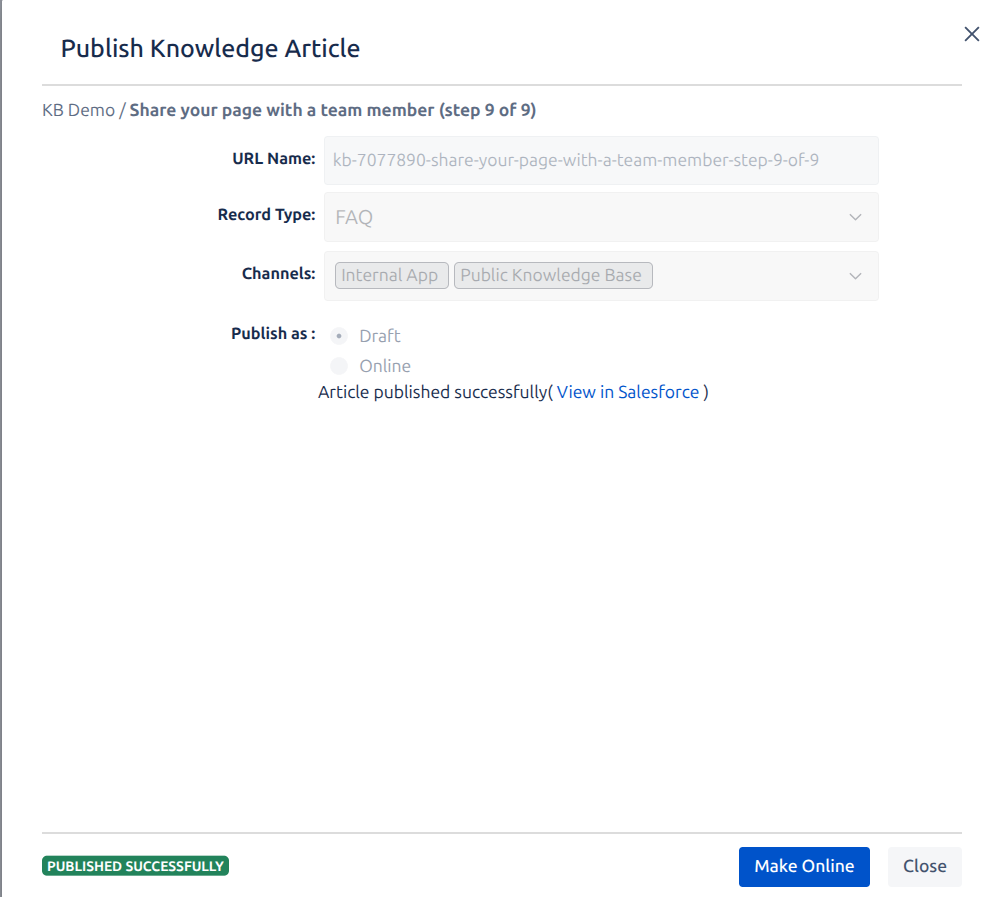
If you choose to publish the page in Draft mode, you may review the published Article in Salesforce via the 'View in Salesforce' link provided, as well as, make the Article Online. It is recommended to review the draft Article in Salesforce prior to making it Online and available to Internal Salesforce Users or public Sites.
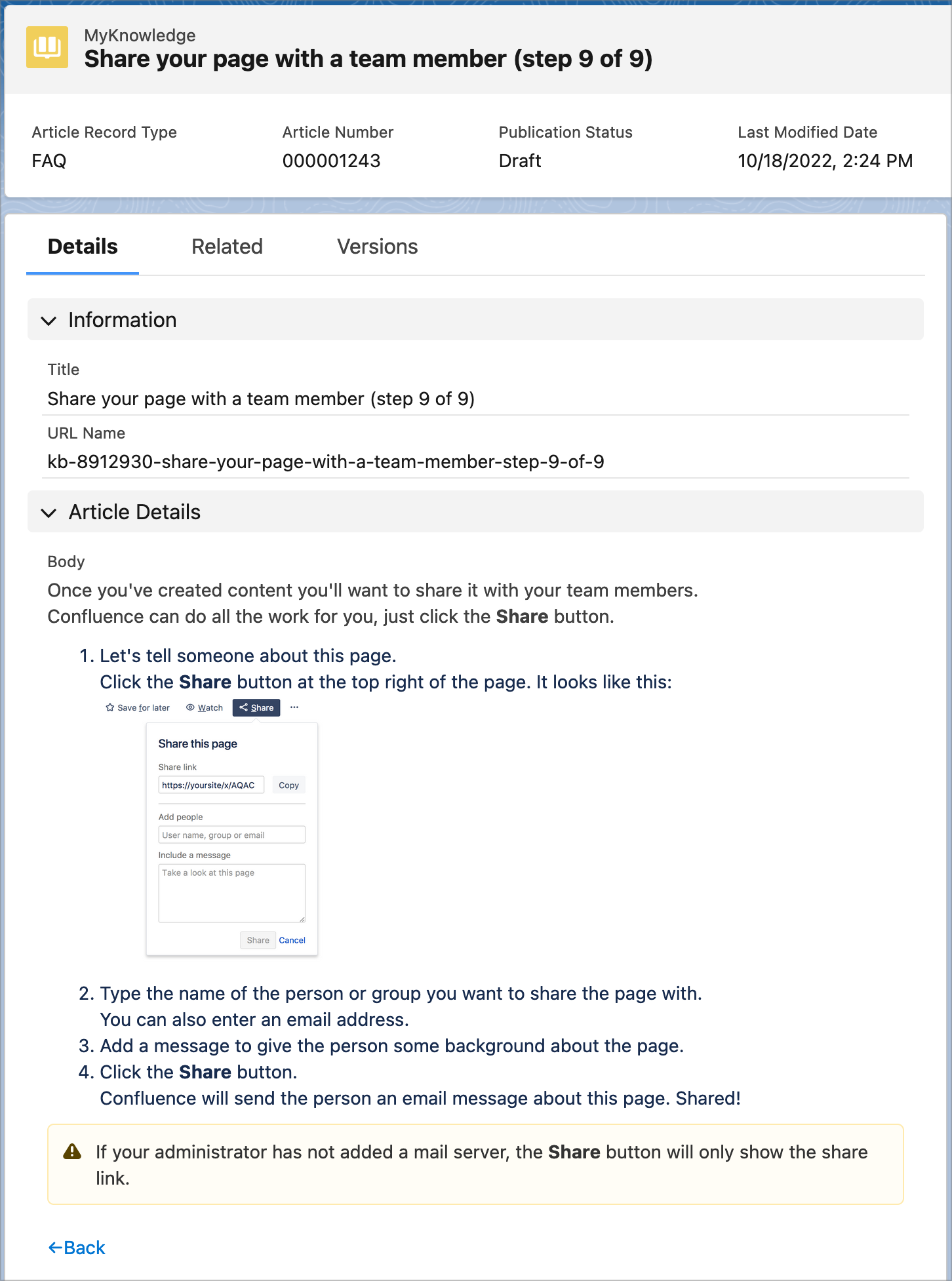
Confluence page as rendered in Salesforce Lightning Knowledge
For each page, Knowledge:Bridge can retrieve the Knowledge Article metadata associated with the page. This is easily accessed via the ‘SF Article Info’ link on the page header, as shown below:
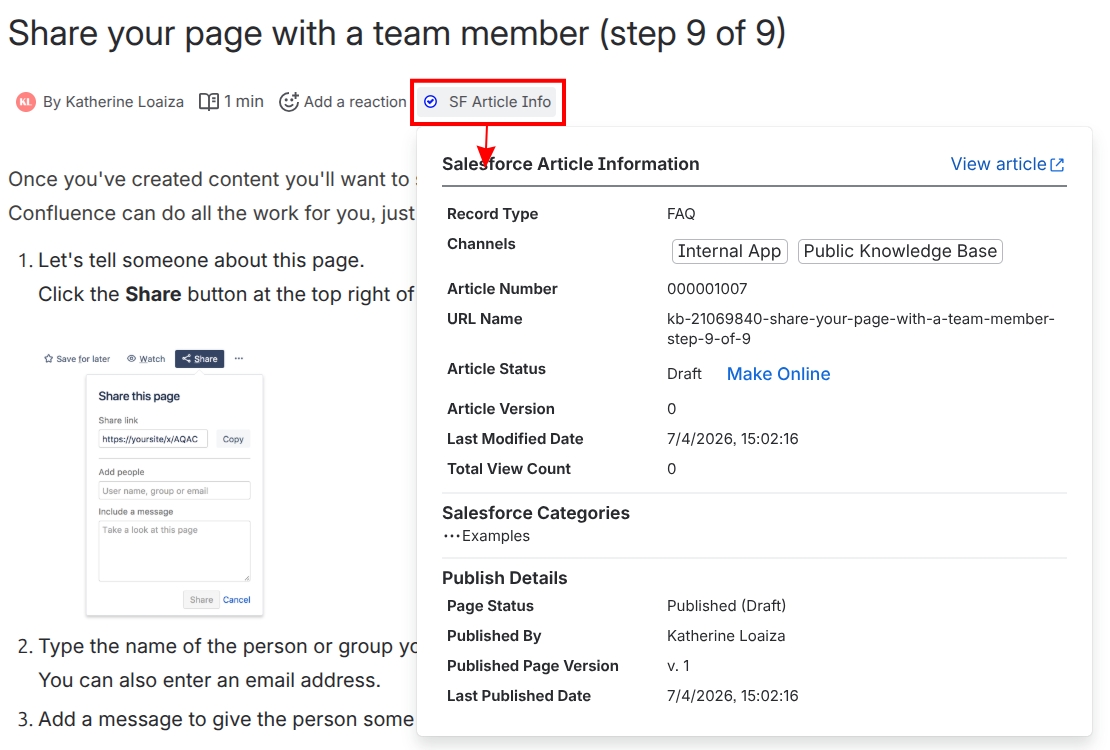
Salesforce Article Info
The ‘SF Article Info’ link on the page header shows an icon with the following meanings.

|
The latest Confluence page version was published in Salesforce as DRAFT |

|
The latest Confluence page version was published in Salesforce as ONLINE |

|
The latest Confluence page version has not been published in Salesforce |

|
Error retrieving article information from Salesforce because it was deleted or authentication is incomplete |