
Go to the Lightning App Builder for the non-Case Object and add the zAgileConnect Lightning Web Components. The recommended approach is to add a new Tab for the components.
The components you can add are the following:
-
Related Jira Issues
-
Search Jira Issues
-
Related Jira Activity
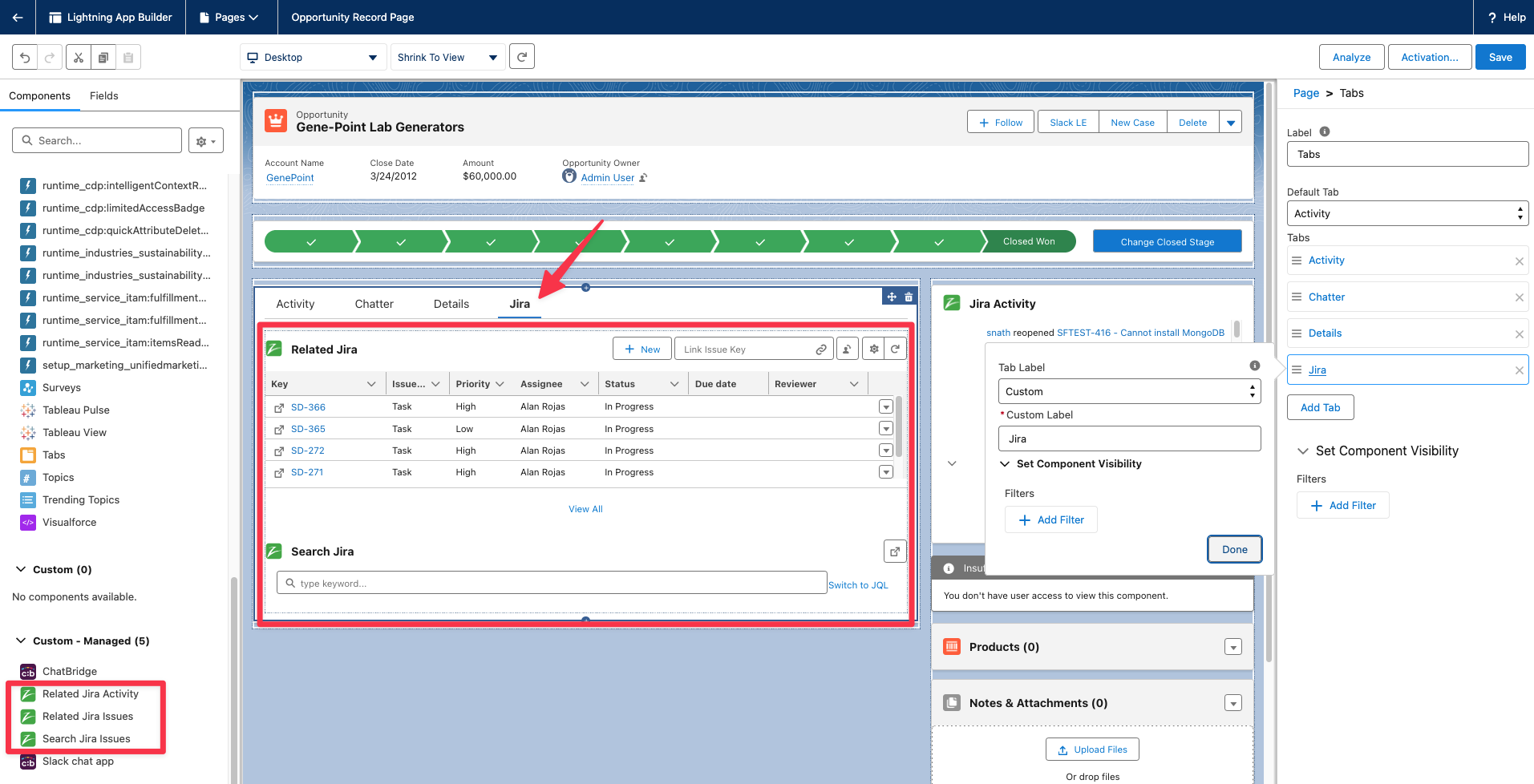
More details about the Lightning Web Components can be found in Add Jira Lightning Web Components (LWC).
If you are still using Salesforce Classic and Visualforce pages you may want to create a new Visualforce Page (Optional).
These steps are only needed if you are still using Salesforce Classic instead of Lightning.
Go to Build/Develop/Visualforce pages and create a VF page with the following body (Change the standardController (“Account” in the example above) with the API name of the object you want to integrate. Follow the steps below for adding your VF page to the object layout):
<apex:page standardcontroller="Account" extensions="zsfjira.ZRelatedIssuesController" lightningStylesheets="true" docType="html-5.0" >
    <zsfjira:ZRelatedJIRAIssues relatedIssuesController="{!this}" containerUrl="{!$currentPage.URL}"/>
</apex:page>
Add Visualforce Page to the Object Layout
Create a section for the Jira Related Issues and drag the Visualforce page created above (for non-Case objects) into this section.
For Case Object, zAgileConnect provides Visualforce page ‘zAgileConnect Jira’ with the package that can be added to a Case page layout.
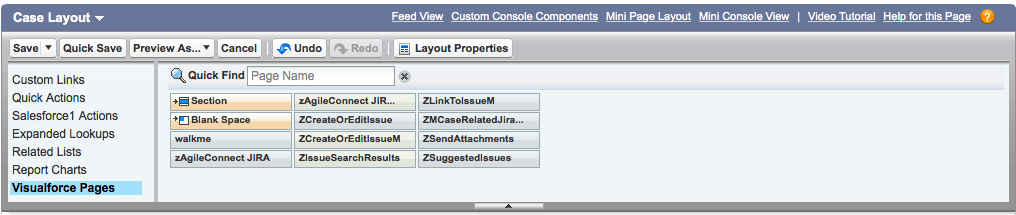
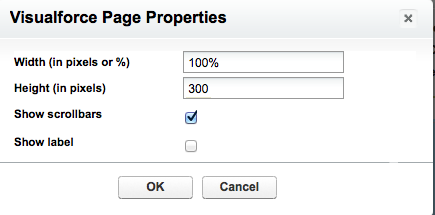
Set the property of this page for sufficient width and scrolling, as desired.
Using the Tools icon on the top right of the Visualforce page, define here the columns you want to display and their order.

.png?cb=8c5bc3a9006d8132ff845b641c4047ce)