Please note that zAgileConnect license is required for a user to invoke this Action. Additionally the user must have the “zAgileConnect Subscription User“ permission set and access to the “ZCProcessIssueUpdate“ apex class.
You can update an Issue by using Salesforce Flow and adding the “Update Issue“ action to your flow. The action has the following fields:
Update Issue Action Fields
|
Field |
Type |
Required |
Description |
|---|---|---|---|
|
connectionId |
String |
|
If multilple Jira instances are connected (for zAgileConnect Release 1.15.x and higher), specify the connection id (j00, j01, etc). Leave empty to use the default Jira connection. |
|
issueKey |
String |
|
The key of the Jira Issue to update |
|
issueTypeName |
String |
|
Jira Issue Type names (e.g. Bug, Task, Improvement). |
|
summary |
String |
|
A brief one-line summary of the Issue. |
|
description |
String |
|
A detailed description of the Issue. |
|
environment |
String |
|
The hardware or software environment to which the Issue relates. |
|
label |
String |
|
Label to which this issue relates. Note this field accepts a single value only. |
|
priorityName |
String |
|
The importance of the Issue in relation to other issues (e.g. High, Low, Lowest). |
|
duedate |
Date |
|
The date by which this Issue is scheduled to be completed. |
|
affectVersionName |
String |
|
Project version for which the issue is (or was) manifesting. Note this field accepts a single value only. |
|
fixVersionName |
String |
|
Project version in which the issue was (or will be) fixed. Note this field accepts a single value only. |
|
componentName |
String |
|
Project component to which this issue relates. Note this field accepts a single value only. |
|
reporterName |
String |
|
Jira ON-prem only the Jira Server or Data Center username who entered the Issue into the system. Leave blank to use the Jira account associated with the current Salesforce user (if the current Salesforce user had previously authenticated to Jira directly, otherwise it will be the Jira Integration User account ) |
|
assigneeName |
String |
|
Jira ON-prem only the Jira Server or Data Center username to whom the Issue will be assigned. Leave blank to let Jira auto assign the Issue. |
|
customfieldsJSON |
String |
|
To populate custom fields for an Issue, use the field customFieldsJSON in which you can use a formula for building the JSON as string. More details below. |
If more than one Component, Label, FixVersion or AffectsVersion is required to be passed to Jira when updating an Issue (or reporter/assignee for Jira Cloud), use instead the zAgileConnect Apex API for updating Issues.
Error Handling
This invocable action executes callouts to Jira API and so is executed in an asynchronous transaction. For this reason this action does not return any result. Errors during Issue updates are sent via email to the Salesforce user for whom the Flow is being executed.
Setting Custom Fields Data
Updating custom fields requires setting the customfieldsJSON, for more information about the expected format for this field go to the “Setting Custom Fields Data” section in zAgileConnect Legacy Flow Action - Create Issue
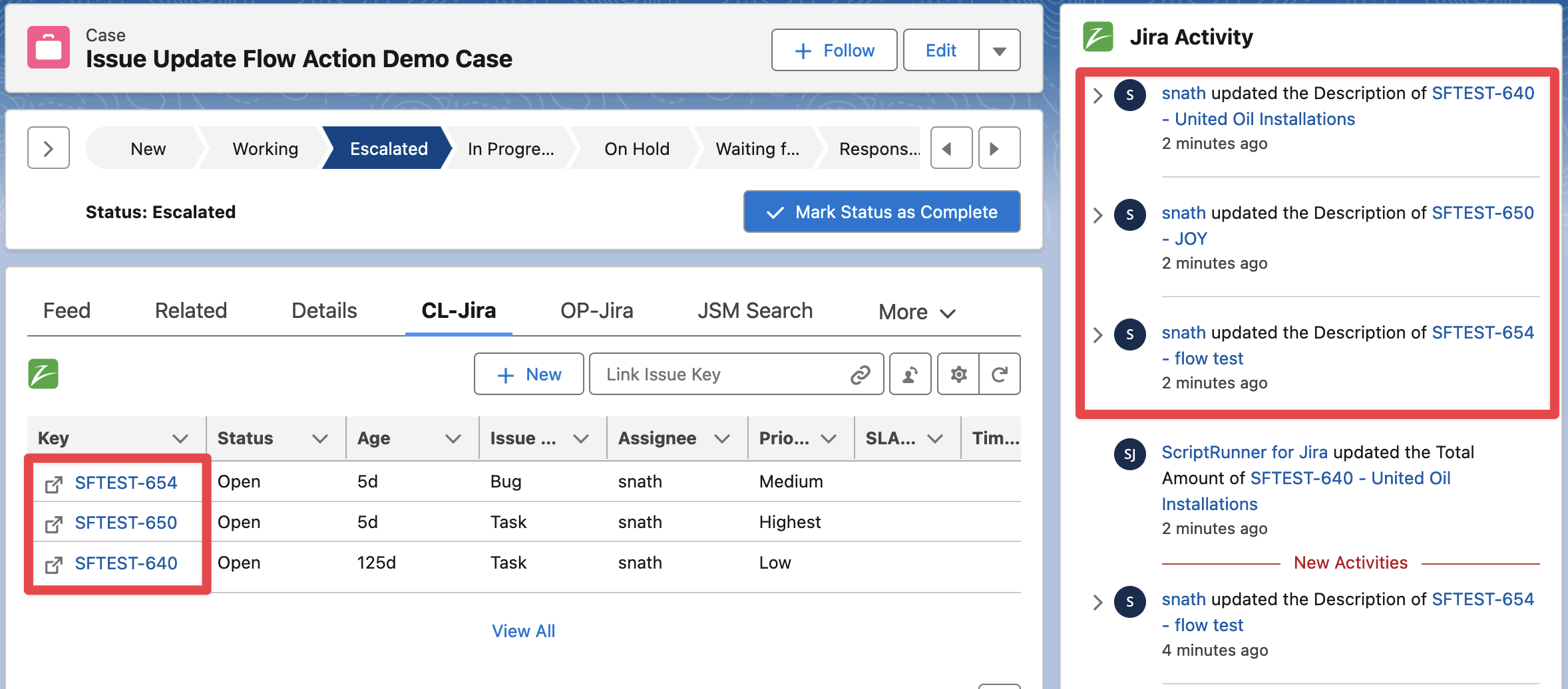
Example Flow to Update an Issue Description in Jira when Case Description is updated
The following example will update an Issue every time the linked Case is updated, specifically when Case Description is updated.
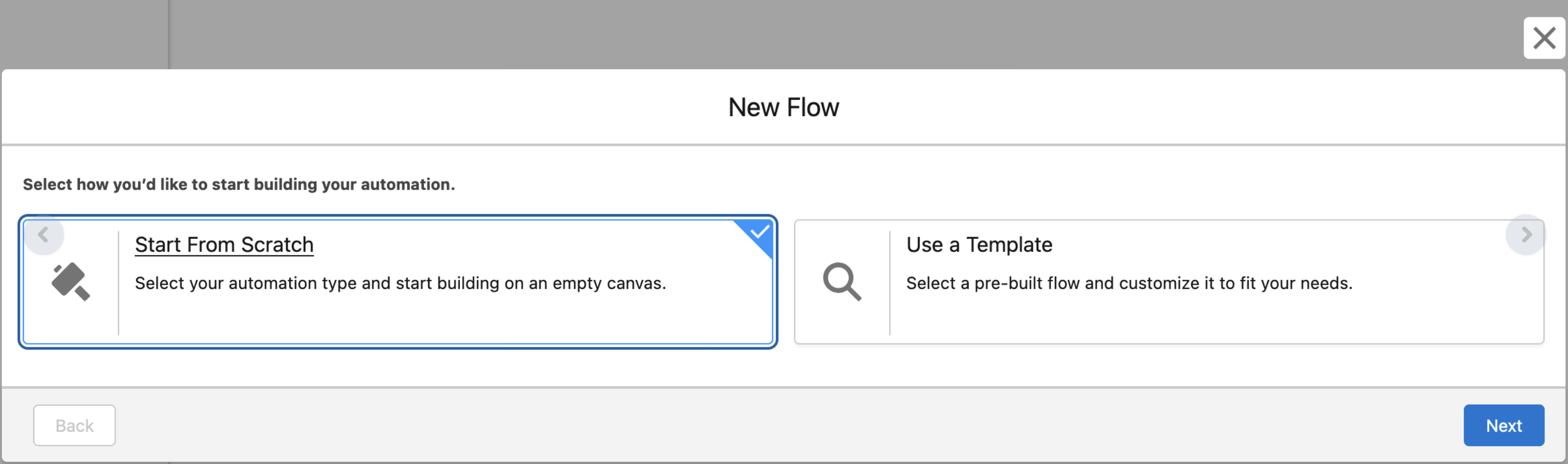
In Salesforce → Flows create a new Flow from scratch
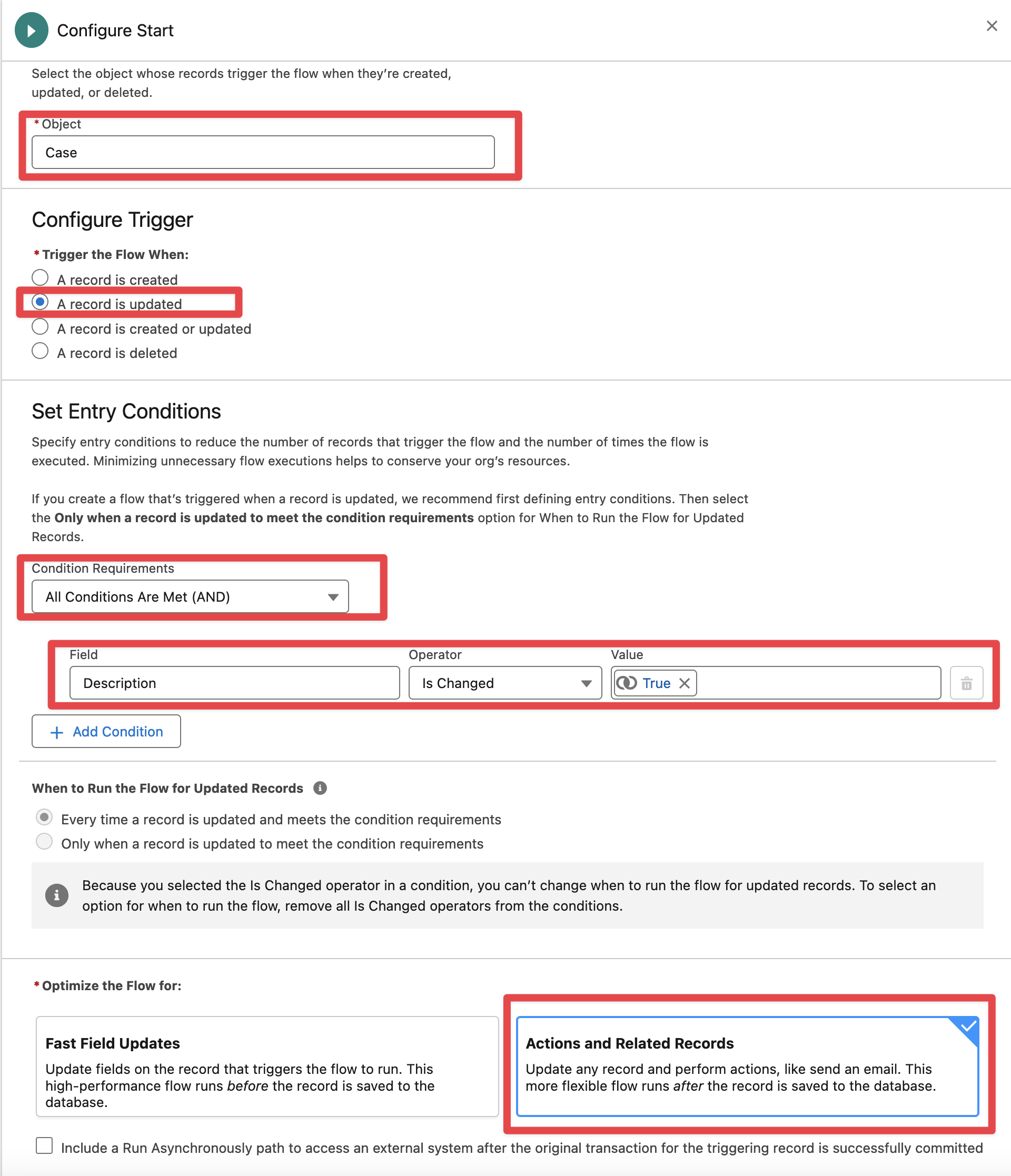
Select “Record-Triggered Flow“ and create, then select the Case Object and the conditions as follows:
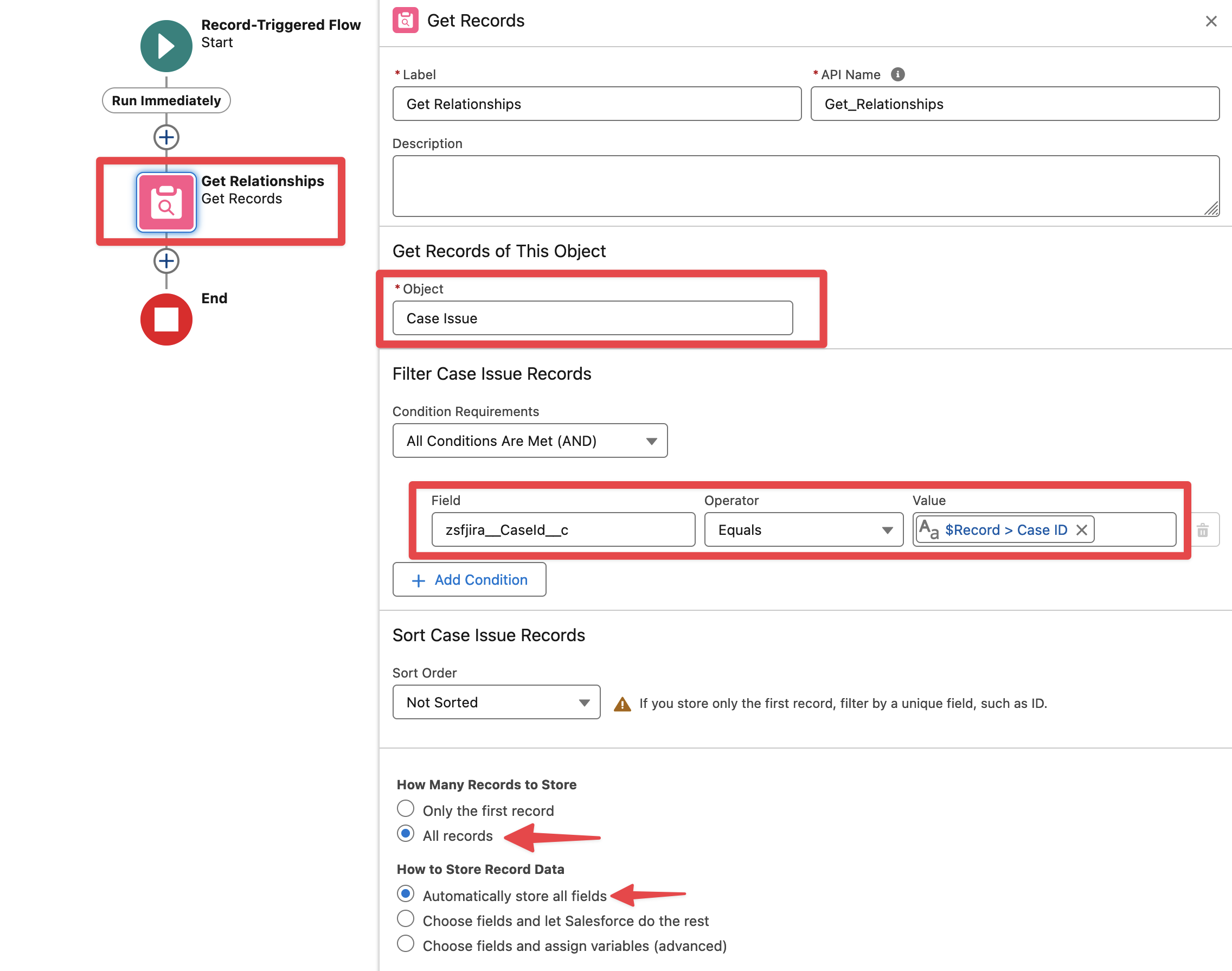
Add a Get Records element to retrieve relationships from the junction object ZIssue_Case
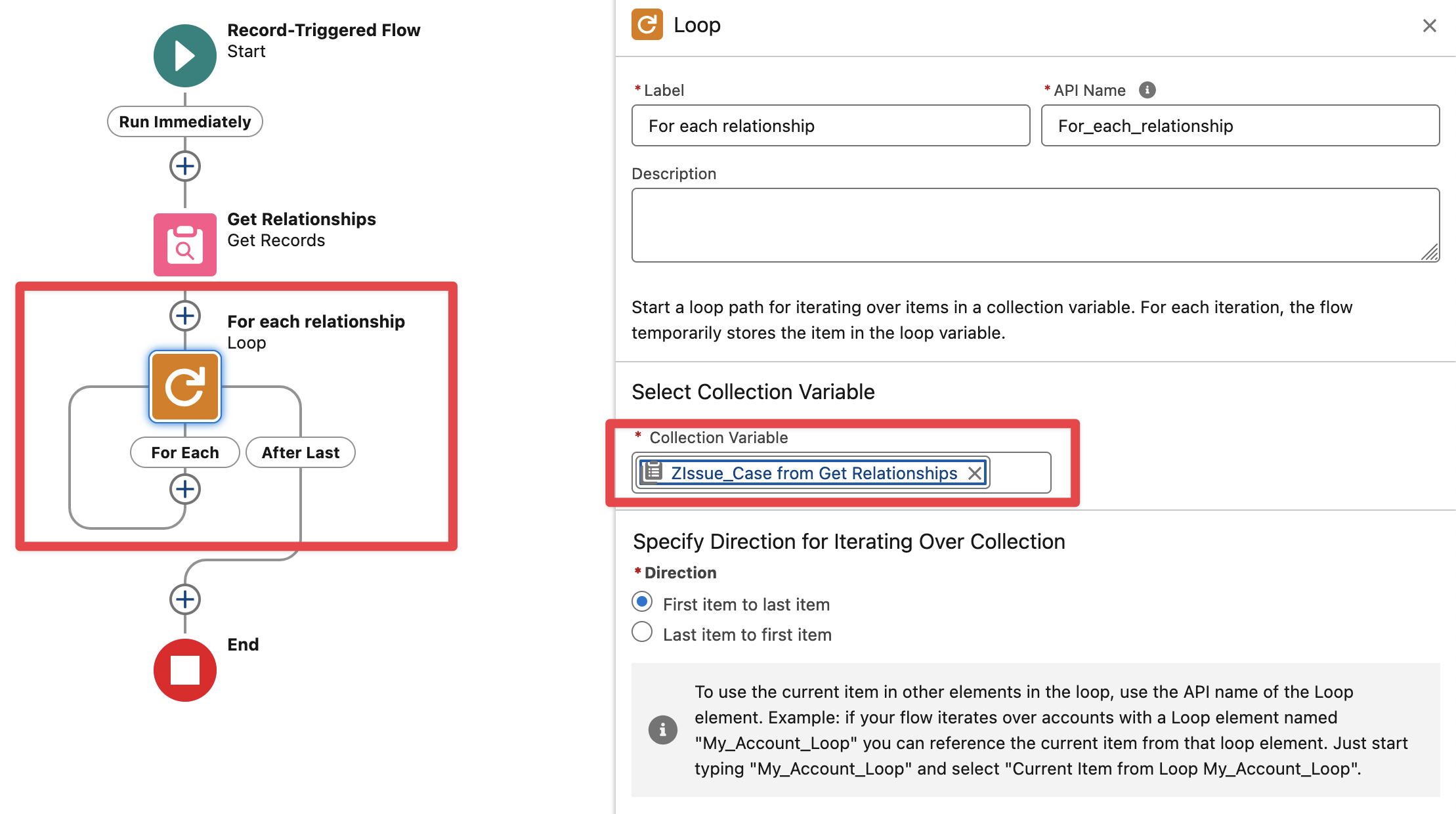
Add a Loop element to iterate over each relationship (the result of the previous Get Records element)
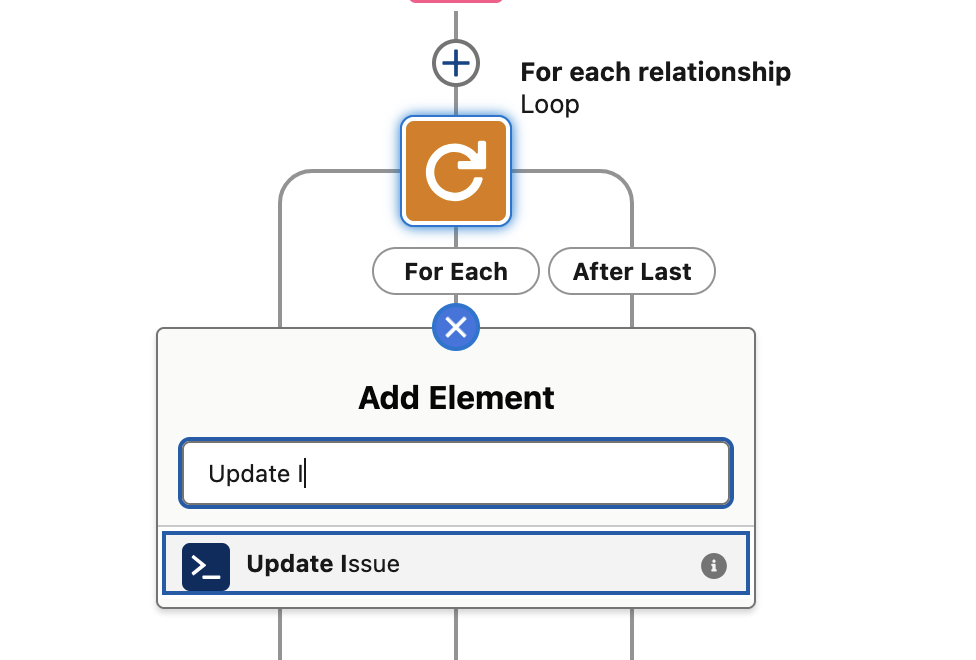
Add the “Update Issue“ zAgileConnect Action
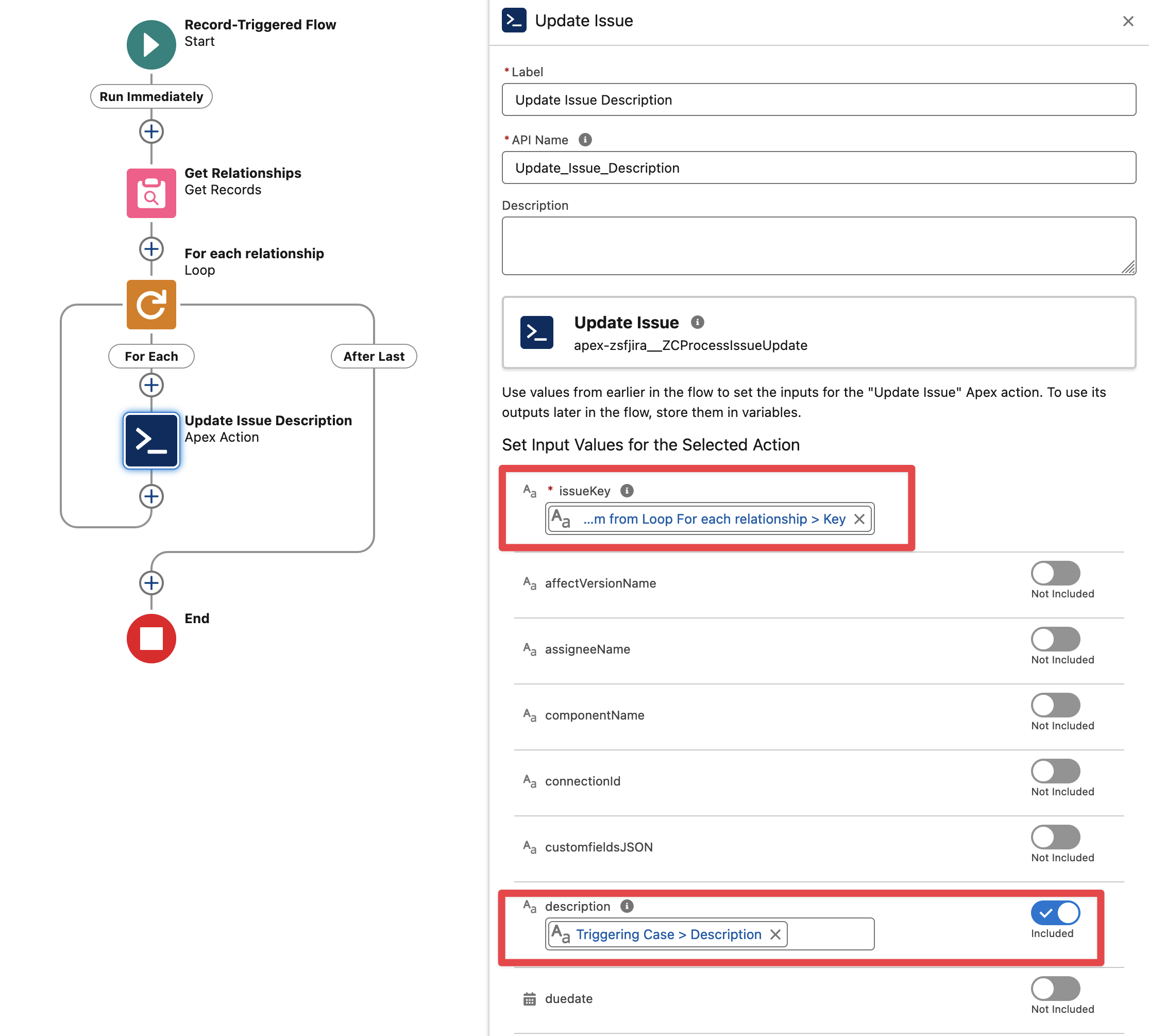
Map the Issue Key (ZIssue_Case Key field) and the Case Description to the Action fields
Finally Save and Activate the flow. Then go to a Case with linked Issues and update the Case Description, all linked Issues descriptions must be automatically updated.